
Adding a new page
< Back to Engineering Zope Tutorials
Adding a new page
First, login to your site and browse to the folder where you would like to create the new page.
Select "HTML Document" from the "Select type to add..." drop-down menu.
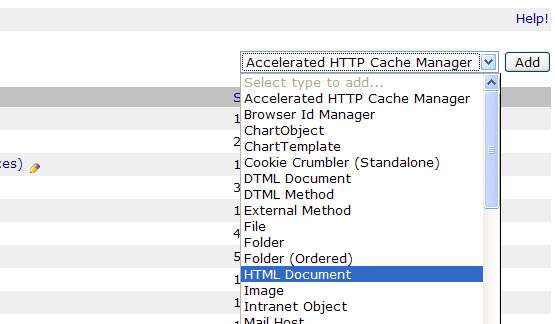
Enter an id and title for the new document. The id will be used as the filename and will appear at the end of the URL for this document. It should not contain spaces, quotes, or special characters. Generally, the id should end with .html as the extension.
The title should be a human readable name for the document.
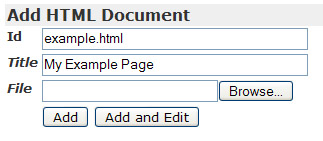
Click "Add and Edit" and the editing screen for the document will load. Enter the necessary information and save your changes.
Linking the new page into your navigation
Once a page is created, it must be added to the site navigation so that visitors can find the page. Unfortunately, this is the one step where a small amount of HTML coding is required.
First, find the "sidebarLeft" object within the section of your site where the new page was created. This object contains the links that appear in the left sidebar of the current section. Click on the object to load the editing interface.
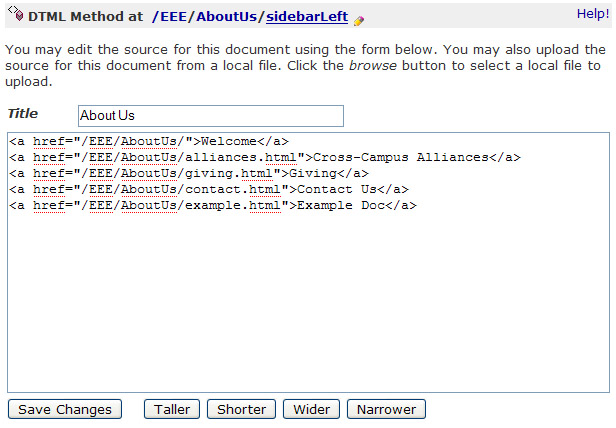
Add your link to the sidebar in the format:
<a href="[url]">[title]</a>
Where [url] is the link to your new document and [title] is the text visitors will click.
A shortcut is to copy and paste an existing link and modify the url and title to suit your needs.
Once you've added your new link, click "Save Changes"