
The content of this document may be incorrect or outdated.
Print this article Edit this article
X Windows Security
Introduction
This document describes the security problems running X-windows applications over the network to a PC operating as a display server.
Overview
X-windows is peer to peer communications. UNIX applications contact an X windows server asking for output to display on the screen and for input to come from the mouse and keyboard. Usually the peer to peer communication between application and X-windows server is over the Internet. The protection of the communication channel between UNIX application to X-windows server is by a limiting host list, or by a pass code known as a cookie. It is also possible to protect communications by both methods, or by neither method. Neither method is the wide open security problem being discussed in this document as it is usually the default for X-windows software packages for the PC computer.
Purdue University holds a site license to the Hummingbird Exceed software product for use on computers at the university plus faculty, staff and student computers at home 1. Hummingbird Exceed runs on all Windows operating systems, 95/98/Me/NT/2000. To obtain the software for university or home use, go to the PACE download page and follow the instructions. Once installed, it is important to make additional enhancements to Hummingbird Exceed to enable networking security. Without these changes, anyone on the Internet that is generally able to contact your computer could read any keystrokes, show any image on the screen or disable and lock the Windows system from use. It's amazing that users are leaving themselves open to this all the time. Usually the thought is that this will never happen to me. Most users don't implement security when computing with X-windows because of its inconvenience. But with a little extra effort and practice, security is achievable with little loss in productivity.
Be sure to read all the instructions on this document before proceeding.
1. Students may begin using Hummingbird Exceed on home computers beginning August 2001.
Implementation
Invoking an X-windows application is accomplished by the following steps:
- Start the X-windows server program running on the PC computer.
- Start a telnet window and log on to the UNIX server.
- In the telnet window, set the DISPLAY variable referring to the PC
computer.
- Start an X-windows application.
An alternative to setting the DISPLAY variable is to invoke an X windows application and give the -display command line switch.
In a more secure environment, the process is nearly the same:
- Start the X-windows server program running on the PC computer, with host access limited to the local machine only.
- Start a secure telnet window and enable X11 forwarding.
- Log on to the UNIX server.
- Start an X-windows application.
The secure telnet program will automatically set a DISPLAY variable referring to the PC computer.
In following sections are step by step instructions for setting up a secure environment and how to navigate through the process of starting an X windows application.
Installation
To operate X-windows software in a more secure mode, the X-windows software needs installing along with a secure telnet program that produces encrypting and tunneling service. This document describes the software products Exceed from Hummingbird Communications as the X-windows program and ssh from SSH Secure Communications Corp. as the secure telnet program.
Hummingbird Exceed
Obtain the Hummingbird Exceed software from the PACE download page and install it on your Windows computer. The download of Hummingbird Exceed requires a coordinated user account, but the installation process does not require a software license key. Once the software installer package is on the PC, perform the following actions:
- Double-click on the icon to start the installer application.
- Click on Next.
- Select the language choice and click on OK.
- Click on Next.
- Read the license agreement then click on I accept the terms in the license agreement then click on Next.
- Enter your user name and organization into the text fields, then select Install this application for: Anyone who uses this computer (all users), then click on Next.
- Select the installation folder then click on Next.
- Select installation type then click on Next.
- Click on Install.
Wait for installation to complete... - Select keyboard type and click Next.
- Enter and confirm a password for the configuration then click Next.
- Click Next or Skip, depending on if you want to wait to have the server software tuned.
- Click on Finish.
SSH
Obtain a copy of secure telnet software from the SSH Secure Shell for Workstations Downloads and install it on your Windows computer. This version operates with all Windows (95/98/Me/NT/2000) operating systems. Once the software installer package is on the PC, perform the following actions:
- Double-click on the icon to start the installer application.
- Click on Next.
- Read the license agreement then click on Yes.
- Select the installation folder then click on Next.
- Select the program folder then click on Next.
- Select the software components to install (all components are recommended) and click on Next.
- Click on Finish.
Adjustments
Each software product needs adjustment to make the networking connection secure. By default, neither Hummingbird Exceed restricts connections, nor does secure telnet perform X11 tunneling.
Hummingbird Exceed
The security of Hummingbird Exceed allows connections from any location, through the local loopback network or any internet connection. The goal is to only allow connection from the local loopback network. By doing this, only programs running on the PC computer itself will be allowed access to the X-windows server. It is assumed that if a connection is coming from the PC, then it's more likely that it's a legitimate connection. Hummingbird Exceed will need to be told to disallow all connections except those coming from the local loopback network. To make the changes, perform the following actions:
- Start the configuration program by clicking on Start -> Programs -> Hummingbird Connectivity V7.0 -> Exceed -> Xconfig.
- If you set a password during the installation, enter the password and click on OK.
- In the configuration window, double-click on the Security icon or select from the menu Settings -> Security....
- In the security settings window, click on Host Access Control List: Enabled (no host access), then click on OK.
- Close the configuration program by click the close button.
SSH Secure Communications Corp.
SSH has the capability of tunneling X11 communications from the UNIX server to the PC. Tunneling is the process of presenting a network service on one side of the secure telnet window and presenting the data on the other side. The tunnel gets the benefit of going through the same encrypted communications channel, so that information about the X-windows application cannot be captured by a third party. Once the tunnel is set up, an X-windows application on the UNIX side works as if the X-windows server is part of the application server. The starting point of the tunnel on the UNIX server is protected by cookie access control. This eliminates third party control of the X server running on the PC. The shell invoked by the secure telnet window will have a corresponding DISPLAY variable set for the convenience of the user to launch X-windows programs. By default, SSH does not enable X11 tunneling by default. To enable tunneling, perform the following actions:
- Start the secure telnet window by clicking on Start -> Programs -> SSH Secure Shell -> Secure Shell Client.
- Click on Settings or select from the menu Edit -> Settings....
- Click on Tunneling and put a checkmark next to Tunnel X11 connections.
- Click on OK.
- Click on Save or select from the menu File -> Save.
Operation and Testing
Operate the software to test connectivity and security. In the steps below, an X-windows application will launch testing basic connectivity, then the same X-windows application will launch with different settings to test basic security.
Start a connection to the UNIX server using SSH.
- Click on Start -> Programs -> SSH Secure Shell -> Secure Shell Client.
- Press enter to start a connection.
- Enter the name of the UNIX server and the name of a user and click Connect.
- Enter the password and click OK.
Once logged on, verify that a DISPLAY variable has been set up on behalf of SSH by typing the command echo $DISPLAY followed by the enter key. A typical X-windows display setting should display. If a blank line is shown, go back to the instructions for adjusting SSH and make sure that Tunnel X11 connections has a checkmark.
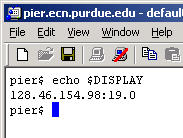
Next, start the Hummingbird Exceed display server.
- Click on Start -> Programs -> Hummingbird Connectivity V7.0 -> Exceed -> Exceed.
The default settings will bring up Hummingbird Exceed as an icon in the system tray, plus a toolbox in the top left of the screen. To avoid confusion, click on the system menu at the upper left icon of the toolbox to dismiss it from the screen. Restoring the toolbox is available by right-clicking on the Exceed icon and selecting Tools -> Toolbar -> Show.

Next, start an X-windows program. A simple application like the clock will be enough to test. Type xclock followed by the enter key. A clock should appear on your screen. Close the clock by clicking the close button. If the xclock program shows unknown command instead of starting, that means that the X-windows software isn't in your PATH variable. Try typing /usr/openwin/bin/xclock or /usr/X11R6/bin/xclock.
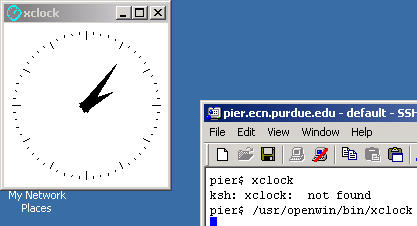
This demonstrates the secured method of getting the clock to display on your screen. It works by having SSH capture the DISPLAY port on the local machine and passing it back through the SSH connection to the PC. SSH then passes this information through the localhost interface to the Hummingbird Exceed program. Since Hummingbird Exceed only permits connections through localhost, the communications are more secure.
Next, test that the PC is not open to remote connections from the Internet. A way to test is to refer to the PC's X-windows display by the direct name. First find out the Internet name of the PC. If the Internet name is short enough, typing the command who am i on the SSH window and note the last field of the results.
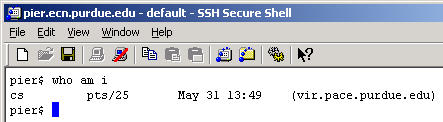
Use host name when typing the command xclock -display name:0, where name is the PC computer's Internet name or IP address. Type enter to execute the command. This should not operate correctly. You should see a response something like:
Xlib: connection to "pc-name:0.0" refused by server.
Xlib: Client is not authorized to connect to Server
Error: Can't open display: pc-name:0
If a clock appears, then Hummingbird Exceed settings don't restrict connections to localhost only. Go back to the instructions for Hummingbird Exceed and make sure that the host access control list is enabled.
Last Modified:
Dec 19, 2016 11:12 am US/Eastern
Created:
Aug 9, 2006 12:59 pm GMT-4
by
admin
JumpURL: