
The content of this document may be incorrect or outdated.
Print this article Edit this article
PAL: Authenticating to PAL 1.0 with OS X
Mac OS X clients using version 10.2 and up can authenticate to Purdue Air Link (PAL) 1.0 using OS X's built-in VPN software, accessible through the Internet Connect application.
NOTE: You must be in range of a Purdue Air Link (PAL) access point. To determine if you have a good signal, look at your AirPort menu extra or open the Internet Connect application (instructions follow) and look at the signal level. A signal level of over 50% will usually be sufficient for a strong connection. Weaker connections are subject to service interruptions.
Connecting to PAL 1.0
First, you will need to select the PAL network. To do so, click the AirPort menu at the top of the screen and select "Other...". See Fig. 1.
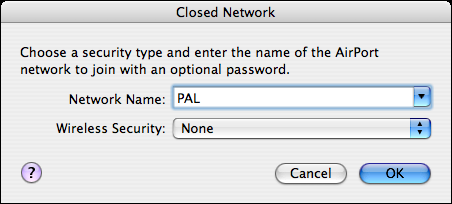 Figure 1
Type "PAL" as the network (without quotes) and select "None" for Wireless Security. See Fig. 2
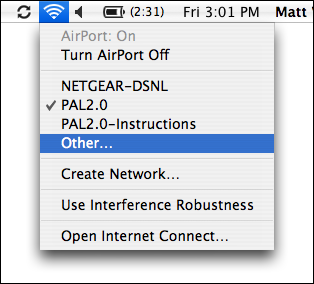 Figure 2
Click OK and your Mac will join the PAL network. Next, open Internet Connect. You can do so by selecting "Open Internet Connect..." in the AirPort menu or launching Internet Connect in the /Applications directory. You should see a window as seen in Fig. 3.
 Figure 3
To set up the VPN, first select "New VPN Connection..." from the File menu. You should a sheet pop up asking if you'd like to create an L2TP over IPSec or PPTP VPN. See Fig. 4.
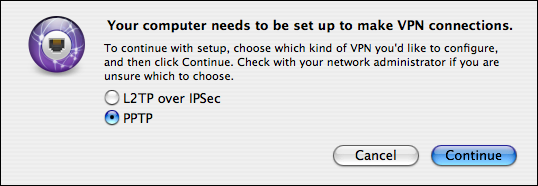 Figure 4
Choose "PPTP" and click Continue. You should see a new window with spaces to enter connection information. See Fig. 5.
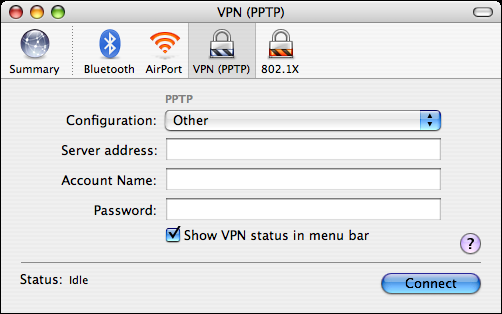 Figure 5
Click the Configuration: pop-up menu and select "Edit Configurations...". Another window will appear with more spaces for entering connection information. Fill in the following fields as described below. See Fig. 6.
- Description:
PAL 1.0- Server Address:
vpn1.airlink.purdue.edu- Account Name: (your Purdue account name)
- User Authentication: (your Purdue password; select Password)
- Encryption: Automatic (128 bit or 40 bit)
- Enable VPN on demand: unchecked
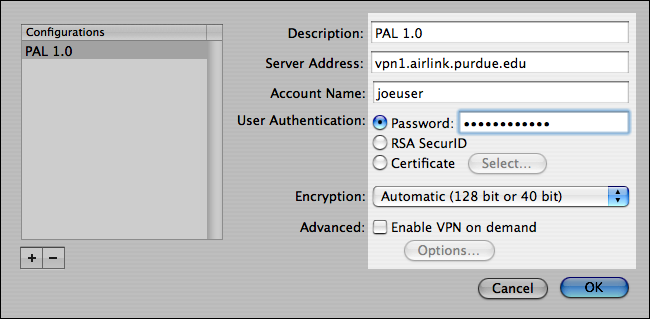 Figure 6
Click OK; you will return to the first window, now filled in with your connection information. See Fig. 7.
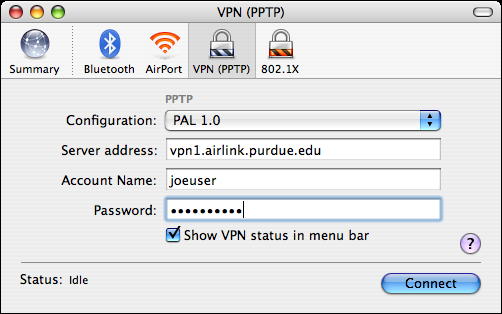 Figure 7
Click Connect to initiate the VPN connection. See Fig. 8.
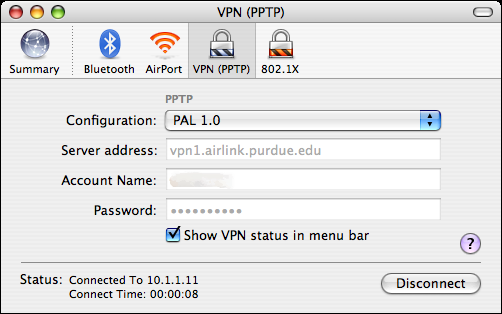 Figure 8
Note: It is important to remember that unlike PAL 2.0, this will not automatically connect you each time you start or wake your computer. You must initiate a new connection each time you wish to use PAL.
Last Modified:
Dec 19, 2016 11:12 am US/Eastern
Created:
Jul 12, 2007 12:59 pm GMT-4
by
admin
JumpURL: