
The content of this document may be incorrect or outdated.
Print this article Edit this article
E-Mail Security
Netscape Communicator
This example decomnstrates how to set up Netscape Communicator. Start the Netscape Communicator application running. The first screen that will come up is a helping wizard that steps through questions about the e-mail account. At the first screen, select Next.
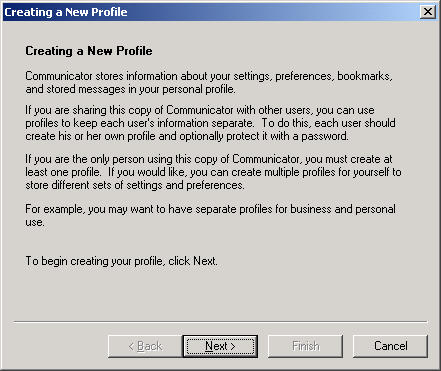
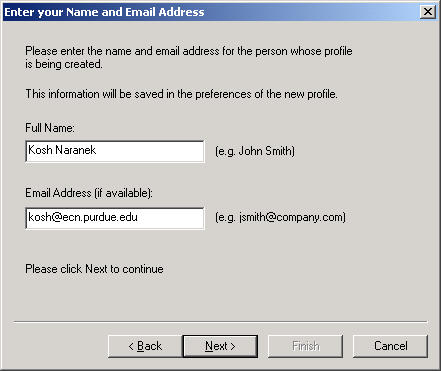
First, enter information about your e-mail account. Enter the full name and e-mail address. For ECN systems, it should be the short e-mail name, ending only in @ecn.purdue.edu. Then click Next.
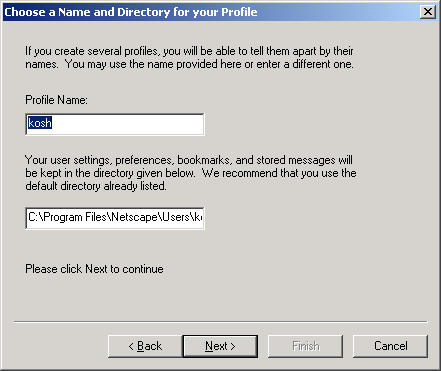
Next, enter profile information. The profile name and the directory that the profile is stored is unrelated to the e-mail account, so enter settings based on your preferences. Netscape usually puts in reasonable defaults so continue without changes. Press Next.
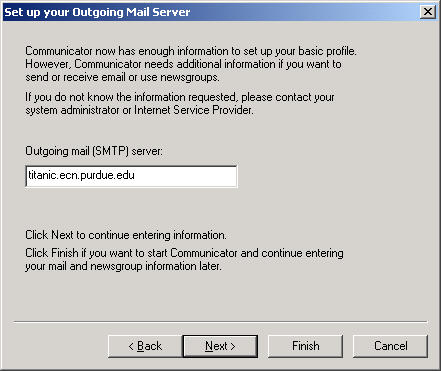
Next, enter the outgoing mail server. Enter the fully qualified server name. Make the outgoing mail server the same as the incoming mail server, which will be enter in the next box. Click on Next.
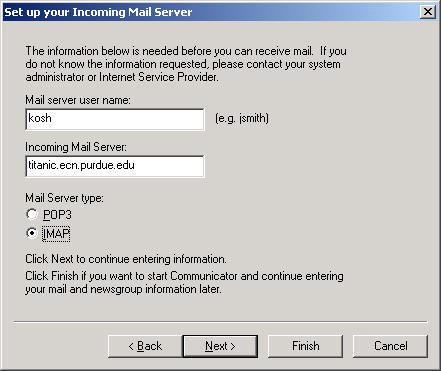
Next, enter information about the account. Enter the account login name and the fully qualified incoming e-mail server. For mail server type, select IMAP. Click on Next.
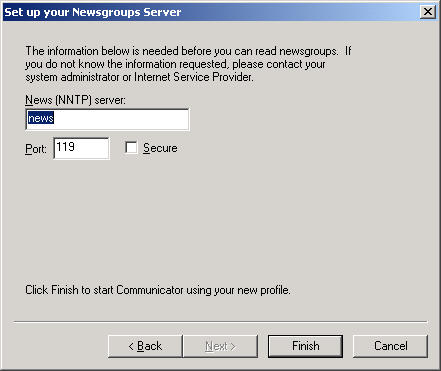
Enter the news server. For Purdue machines, the name is news.cc.purdue.edu. Click on Finish.
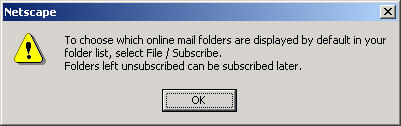
Netscape will pop up this box. Click on OK.
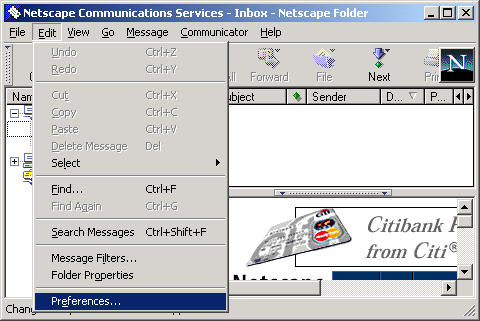
The basic mail settings are complete. Now, continue to the mail preferences section to make additional changes for encryption and authentication. In the menu, find Edit followed by Preferences....
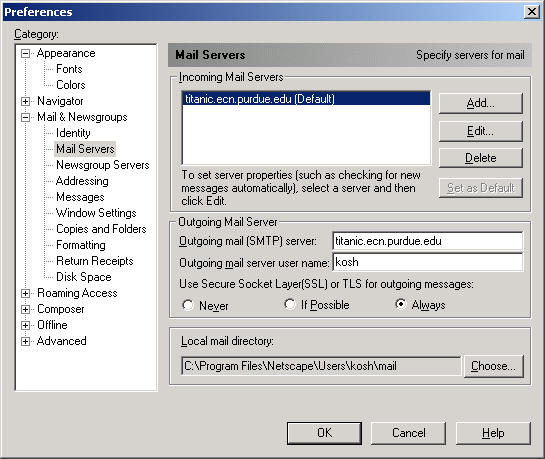
On the left side, expand the item Mail & Newsgroups and select Mail Servers. Here's where encryption changes are made. On the right side, change the Use Secure Socket Layer(SSL) or TLS for outgoing messages to Always. Next, click on the button in the upper right labeled Edit....
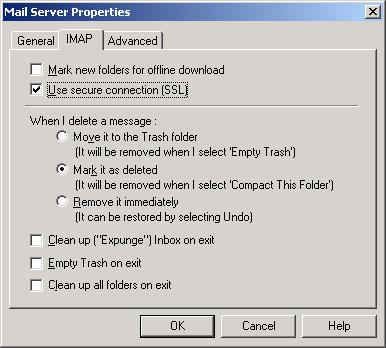
Here's where authenticaton changes are made. In the mail server properties window, click on the top tab labeled IMAP. Place a checkmark next to the item Use secure connection (SSL). Click on OK.
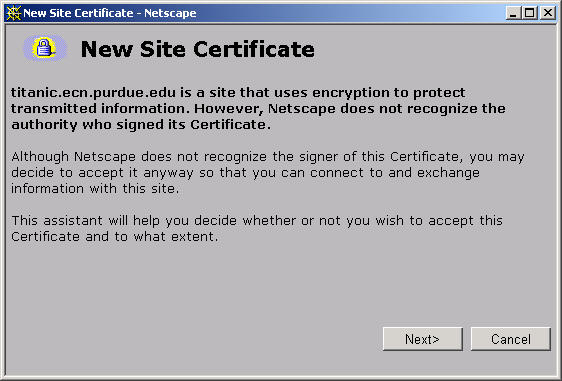
At this point, the incoming e-mail server will send its certificate to Netscape Communicator. Since it is a self-signed certificate, Netscape will want verification that it is okay to use. Click on Next.
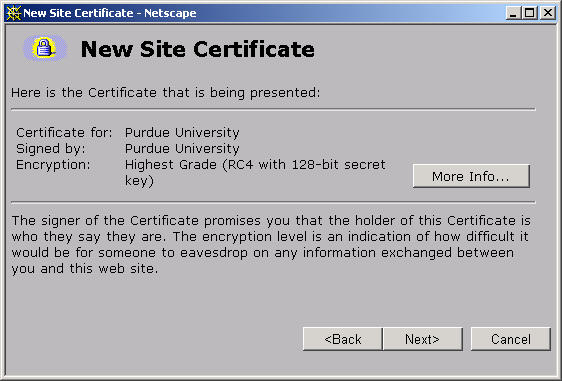
Netscape will describe the certificate. Click on Next.
Next, select Accept this certificate forever. Click on Next.
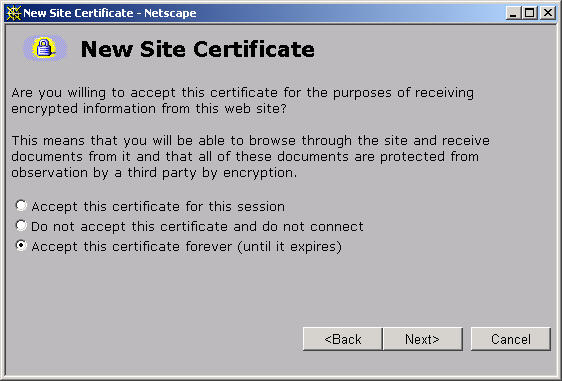
Netscape Communicator will describe the responsibility of using this certificate. Click on Next.
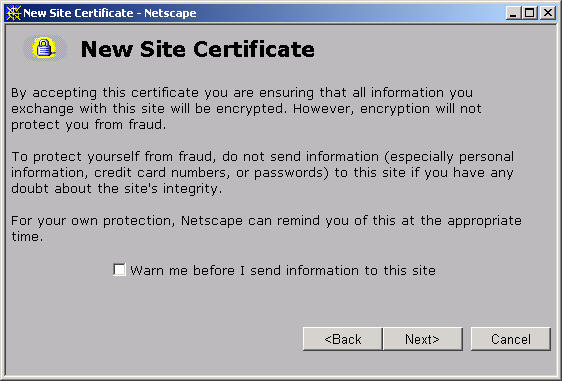
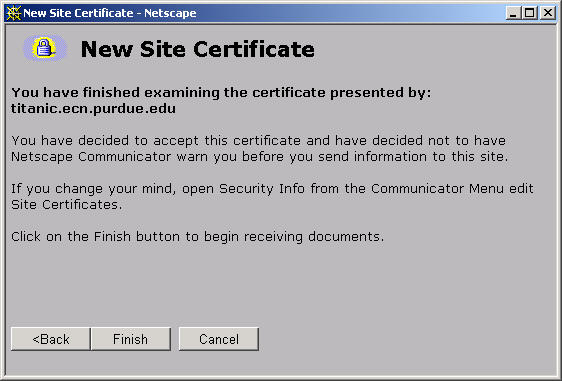
Netscape Communicator finishes up importing the certificate. Click on Finish.
Close the preferences window and exit out of Netscape Communicator. When Netscape Communicator starts the next time, it will use the new encryption and authentication settings.
Last Modified:
Dec 19, 2016 11:12 am US/Eastern
Created:
Aug 9, 2006 12:59 pm GMT-4
by
admin
JumpURL: