
The content of this document may be incorrect or outdated.
Print this article Edit this article
ECN E-Mail: Reconfiguring E-Mail Applications for Secure Connections
If your email is delivered to an ECN host, then you need to follow the instructions below to enable secure connections. You must also have the incoming and outgoing mail servers set to an ECN host in order to send and receive email after making changes.
If you use postoffice.purdue.edu for sending email BUT check email on an ECN host, you will need to change the outgoing mail server name to match your incoming ECN mail server name.
Macintosh Email Clients
Windows Email Clients:
Netscape 6.x & 7.x and Mozilla 1.x Mail
Outlook XP
Eudora 5.x
Outlook Express 6.x
Common Problems
Issues with Eudora and Outlook Express with Norton Antivirus
Issues with MailHub/Postoffice Settings
Issues with UNIX Pine
Netscape 6 and 7 and Mozilla Mail
1) Start Netscape Mail

2) Select the email account and click on the “view settings for this account” link.

3) Select your account in the left box.
4) Select “Server Settings” in the left box under your account.
5) Check the box for “Use secure connection (SSL)”.
The port numbers will change as follows:
pop changes from 110 to 995
imap changes from 143 to 993
smtp stays as 25 if listed
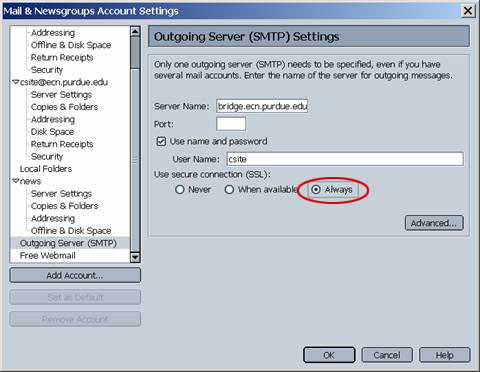
6) Select the "Outgoing Server (SMTP) in the left box.
7) Select the “Always” option for “Use secure connection (SSL)”.
If your system is on the Purdue network, you do NOT have to check the “Use name and password”. This is only required on your home system if you use an outside service provide such as AOL, Insight Broadband, etc… or on your laptop while you are traveling.
8) Click the OK button.
9) Close Netscape Mail..
10) Restart Netscape Mail and it will make a secure
connection to the ECN server when checking your email.
Outlook XP
1) Start Outlook XP.
2) On the menu bar select Tools -> Email Accounts ->

3) Select “View or change existing e-mail accounts” and
click the “Next” button.

4) Select your account and click on the “Change” button.

5) Click on the “More Settings…” button.

6) Click on the “Outgoing Server” tab.
If your system is on the Purdue network, you do NOT have to check the “My outgoing server (SMPT) requires authentication”. This is only required on your home system if you use an outside service provide such as AOL, Insight Broadband, etc… or on your laptop while you are traveling.

7) Click on the “Advanced” tab.
8) Check both boxes for “This server requires a secure connection (SSL)”.
Port numbers will change as follows:
pop changes from 110 to 995
imap changes from 143 to 993
smtp stays as 25 if listed
9) Click the OK button on this window -> click Next
-> Click the finish button.
10) Close Outlook XP.
11) Download the self signed ECN root certificate from
this address:
https://engineering.purdue.edu/ECN/Resources/Documents/UNIX/cert/ecn.purdue.edu.crt
12) Double click on the file and the Windows Certificate Manager will open.
13) Click on the Import Certificate button, leave the defaults and click
next until you get a finish button.
14) Click the finish button.
15) Restart Outlook XP it will make a secure connection to the ECN server
when checking your email.
Eudora 5.x
1) Start Eudora.
2) On the menu bar select Tools -> Options ->
3) Scroll up and select the first icon in the Category section of the
Options window.


4) Select the “Checking Mail” icon.
5) Change the “Secure Sockets when Receiving” option to “Required, STARTTLS”. The option
"Required, Alternate Port" will also work with ECN mail server.

6) Select the “Sending Mail” icon.
7) Change the “Secure Sockets when receiving” option to “Required,
STARTTLS”. The option "Required, Alternate Port" will also work with ECN mail server.
8) Click the OK button.
9) Close Eudora.
10) Download the Eudora rootcerts.p7b file from the
web link below:
11) Copy the file rootcerts.p7b into the installation
directory and overwrite the existing file. Eudora is usually installed
in the c:\program files\qualcomm\eudora folder. This file contains the self
signed ECN root certificate.
12) Restart Eudora and it will make a secure connection
to the ECN server when checking your email.
If Eudora fails to SEND email, check to see if you have Norton Antivirus software running. If so, please see the information at the bottom of this page. Link
Outlook Express 6
1) Start Outlook Express
2) On the menu bar select Tools -> Account

3) Select the Mail tab.
4) Select your account and click on the “Properties” button.
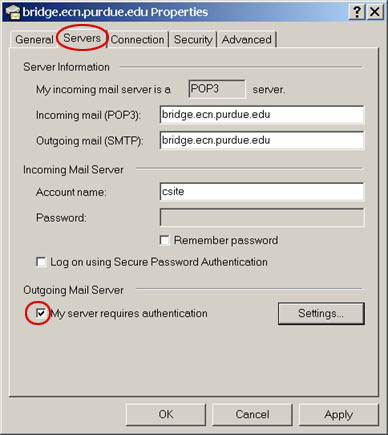
4) Click on the “Servers” tab.
If your system is on the Purdue network, you do NOT have to check the “My server requires authentication”. This is only required on your home system if you use an outside service provide such as AOL, Insight Broadband, etc… or on your laptop while you are traveling

5) Click on the “Advanced” tab.
6) Check both boxes for “This server requires a secure connection (SSL)”.
The port numbers will change as follows:
pop changes from 110 to 995
imap changes from 143 to 993
smtp stays as 25 if listed
7) Click the OK button on this window -> Click Close.
8) Close Outlook Express.
9) Download the self signed ECN root certificate from this address:
https://engineering.purdue.edu/ECN/Resources/Documents/UNIX/cert/ecn.purdue.edu.crt
10) Double click on the file and the Windows Certificate Manager will open.
11) Click on the Import Certificate button, leave the defaults and click
next until you get a finish button.
12) Click the finish button.
13) Restart Outlook Express and it will make a secure connection to the
ECN server when checking your email.
If Outlook Express fails to SEND email, check to see if you have Norton Antivirus software running. If so, please see the information below. Link
Secure Email Issues
Common Problems
Some common problems users are having:
- The SMTP machine (or outgoing mail server) is not an ECN system. The directions only apply if the machine name for your outgoing mail server is of the form xxxx.ecn.purdue.edu where xxxx is a valid ECN host name.
- Users are using Norton AntiVirus and have not done what the directions say to do.
- Outlook/Express users are selecting the option "Log on using Secure Password Authentication" even though there is nothing in the directions that say to do so. Don't select this option.
- Eudora users have not updated to at least version 5.2.1
- Netscape users have not updated to at least version 7.0
- Users have not imported the ECN certificate shown in the instructions.
Outlook Express and Eudora with Norton Antivirus
If you are runing Norton's Antivirus software, Outlook Express and Eudora will NOT be able to SEND email using a secure connection.
Outlook Express will return the following error message:500 Unsupported command., Port: 25, Secure (SSL...)
Eudora will return a message along these lines:
SSL is not support on this server...
To solve this issue, disable the incoming and outgoing email scanning option under Internet settings in the Norton Antivirus software.
- Start Norton Antivirus from the start menu ->
- Click on the Options icon ->
- Select "Email" from the side bar ->
- Uncheck the boxes under What to Scan: Scan Incoming Email and Scan Outgoing Email ->
- Click OK to exit the internet settings -> Click OK to exit the options windows ->
- Close the Norton windows
An alternative solution is to remove Norton Antivirus from your system and replace it with the Purdue licensed McAfee Virus Scanner. Purdue faculty, staff, and students are licensed to use it on purdue and personal equipment. You can download it from the links below when using a machine connected to the Purdue network:
McAfee Virus scanner for Windows 9x/ME
McAfee Virus scanner for Windows 2000/XP
Postoffice Mail Server Settings
If you use postoffice.purdue.edu as your mail server and make the changes above, you may have problems sending email. This happens because Postoffice uses different settings then the ECN mail servers for secure outgoing email connections.If you use postoffice.purdue.edu from an ONcampus computer, you ONLY need to change the INcoming mail server security settings.
However, if you are sending email from an OFFcampus system using a third party ISP such as AOL, MSN, etc..., you will also need to see the ITaP webpage on setting up a secure authenticated SMTP connection: secure outgoing mail server settings for postoffice.purdue.edu.
The secure SMTP authentication settings are in addition to the secure INcoming mail settings listed above.
Issues with UNIX Pine
If you use a remote smtp server for send mail with pine on the UNIX systems, you need to tell pine to use SSL within your .pinerc file. A remote smtp server setting would look something like the following in ~/.pinerc:smtp-server=smtp.ecn.purdue.edu
Just add the /ssl option to the smtp-server line:
smtp-server=smtp.ecn.purdue.edu/ssl
You would also add the same /ssl option to the hostname when using a remote IMAP or POP server.
Last Modified:
Dec 19, 2016 11:12 am US/Eastern
Created:
Aug 9, 2006 12:59 pm GMT-4
by
admin
JumpURL: