
The content of this document may be incorrect or outdated.
Print this article Edit this article
Configuring Outlook 2003 for ITaP Exchange
- Click on Start, Settings, Control Panel, Mail.
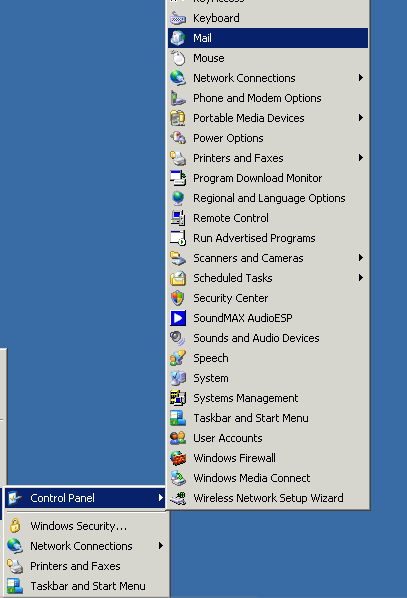
- Click on “Add…” and enter your Purdue username. Click “OK.”

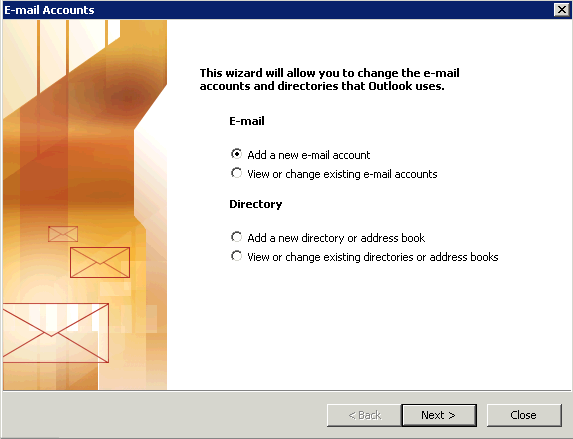
- In the E-mail Accounts window, choose “Add a new e-mail account” and click “Next.”
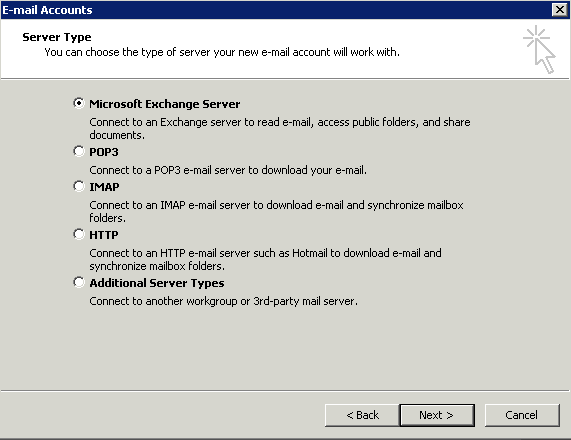
- Choose “Microsoft Exchange Server” and click “Next.”
- Type “exchange.purdue.edu” in the “Microsoft Exchange Server” blank. Type your Purdue username in the “User Name” blank. Make sure that "Use Cached Exchange Mode" is unchecked.

- When prompted to login, type “onepurdue\username” in the “User name” blank where username is your Purdue username. Type your password in the “Password” blank and check “Remember my password.” Click “OK.”

- Once logged in, select the “Tools” menu and click on “E-mail Accounts.” Select your Exchange account and click “Change.”
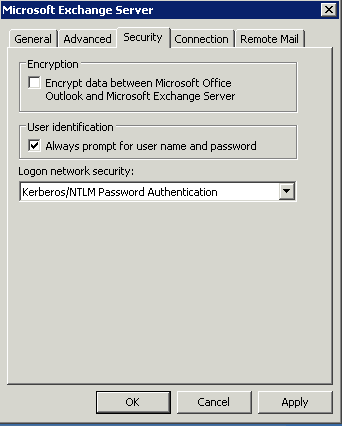
- Click “More Settings…” and select the Security tab. Check “Always prompt for user name and password. Click “Apply” and then “OK.”
- Exit Outlook, then open it again. When logging in this time, you should be able to select the “onepurdue\username” that you entered previously from the drop down menu. Select it, enter your password and click “OK.”
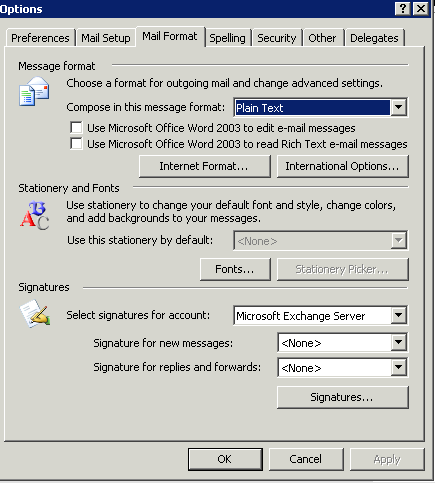
- Select the “Tools” menu, click on “Options…” and select the Mail Format tab. Change the “Compose in this message format:” to Plain Text and uncheck the two boxes below.
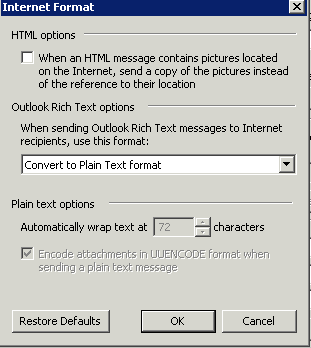
- Click on the “Internet Format…” button. Uncheck the top box and make sure that “Convert to Plain Text format” is selected in the drop down menu. Click “OK.” The check boxes should resemble the picture below.
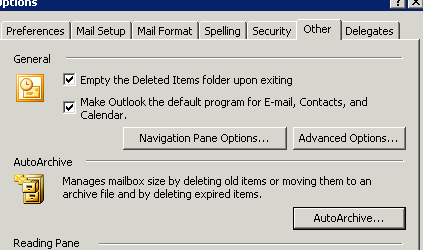
- Select the Other tab. Click on the “AutoArchive” button.
- Create a path to p:\Outlook\archive.pst (should this option be activiated)
- Now uncheck the “Run AutoArchive” box at the very top. Click “OK” twice.
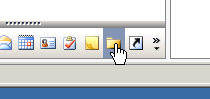
- Now select your folders list by clicking on the folder icon in the left column.
- Click on the “New” button to compose a new e-mail message.
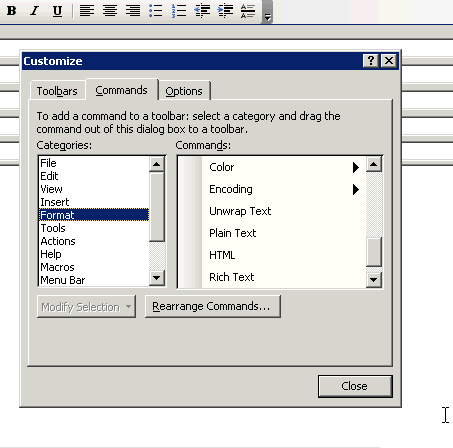
- Right click on the toolbar in the new message and choose “Customize.”

- Select the “Commands” tab and choose “Format” from the Categories column. Select “Plain Text” and “HTML” and drag them to the toolbar. This will allow you to switch to HTML formatting when needed.
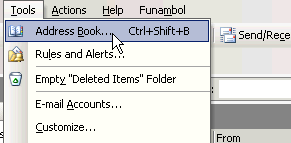
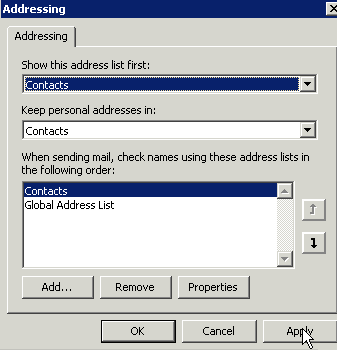
- Next, double-check that the correct address book is selected. Go to the "Tools" menu and choose "Address Book."
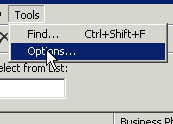
- Next, go to the "Tools" menu and choose "Options."
- Make sure that "Contacts" under "Outlook Address Book" is selected.
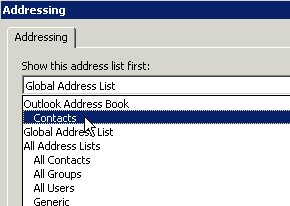
- Make sure that your settings match those below and click "Apply" and "OK."
- Exit Outlook and all other Microsoft Office programs.
- Click on Start, Run. In the “Open” field type “\\ohare\public\tools\usr\local\bin\MoveOutlookFiles.vbs” and click “OK.”
- When that is finished, click on Start, Run again. In the “Open” field type “\\ohare\public\tools\usr\local\bin\OfficeSettings-Save.cmd” and click “OK.”
- You have completed setting up Outlook for Exchange and backed up your settings for ECN to use in the future.
Laptop and Off-Campus Users
For off-campus users that use Outlook to access their Exchange account, this additional configuration will allow you to bypass the need for VPN every time you check your mail and is highly recommended.
RPC over HTTPS Steps:
- Go to: Control Panel > Mail
- click E-Mail Accounts...
- select View or change existing e-mail accounts, Next >
- pick your exchange account and select Change...
- then follow the instructions below
NOTE: the option to "Use Cached Exchange Mode" should only be checked when the
computer is a laptop or notebook and is frequenly in use even when not connected to
the internet. (Figure 1, below)

Figure 1 - E-mail Accounts
1. Click on the "More Settings..." button. (Figure 1)
2. When the Microsoft Exchange Server dialog box pops up, select the “Connection” tab at the top (Figure 2, below).

Figure 2 - MS Exchange Server Properties
3.
A. Select the checkbox that says "Connect to my Exchange mailbox using HTTP"
B. Now click on the “Exchange Proxy Settings...” button. (Figure 2, above)
A. In the "https" text field enter: (Figure 3, below)
exchange.purdue.edu
B. Select the checkbox that says "Mutually authenticate the session when connecting with SSL"C. In the "Principal name for proxy server:" text field enter:
msstd:exchange.purdue.edu
D. In the "Proxy authentification settings" change the drop down box to use "Basic Authentification"

Figure 3 - Exchange Proxy Settings
6. Press “OK” to exit the Exchange Server Proxy Settings
7. Press “OK” to exit the Exchange Server Properties 8. Press “Next” to continue setting up your email account 9. Enter your username in the following format and then enter your password:onepurdue\username
10. Click “Finish” to finalize the setup
11. Open Outlook 2003 and logon to your Exchange Account. Remember to enter your username in the format:onepurdue\username
Last Modified:
Dec 19, 2016 11:12 am US/Eastern
Created:
Oct 10, 2007 11:07 am GMT-4
by
admin
JumpURL: