
Adding News & Events
< Back to Engineering Zope Tutorials
News & Events
The standard school website in the College of Engineering features news and events on the homepage. These are listed under headings such as Spotlights, News, Initiatives, and Events.
These items are maintained using a tool called the "Purdue Event System" which we will overview in this document.
Adding a News Item
First, login to the administrative interface of your department's website.
In the top level folder you should see one or more folders with a hat and feather on the icon. These folders are actually "Purdue Event Managers", folders specifically designed to hold news items.
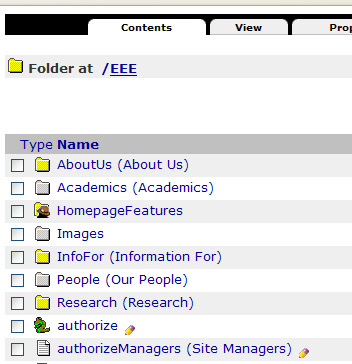
In the screenshot above, the item labeled "HomepageFeatures" is the Purdue Event Manager". Yours may be called Spotlights, Initiatives, News, or some similar title.
Once you've located the appropriate Event Manager, click on it to load the current event listing.
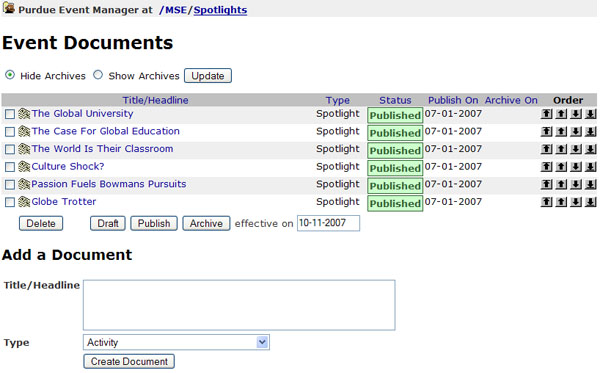
This listing shows the current events published within the Event Manager. To add a new event:
- Enter the title of the event or news item
- Select the appropriate type
- Click "Create Document"
The edit event document screen will load.

For each event, you should enter the following field:
- Title/Headline
- Require title / headline for the item. Entered on the add screen.
- Author
- Optional name of the author of the document
- Event Date
- Optional date on which the news or event occurred or will occur
- Redirect URL
- Optional web address (URL) where viewers are directed when they attempt to view this document. This can be used to create a "stub" for a news item on your school's site which links users to an actual store elsewhere.
- Intro
- An introduction or summary of the news item. This text is often listed below the title/headline on the school's homepage
- Body
- The information visitors will see when viewing the document. If a Redirect URL is specified the body can be left empty.
- Date to Publish
- The date on which an event should be displayed to the public.
- Date to Archive
- The date on which an event should be moved into the archive.
- Images
- Upload images which are used as thumbnails when displaying a news item on the school's home page. Thumbnails should be square images in JPEG format.
- Attachments
- Related files (MS Word, Excel, PDF, etc.) associated with this news item which should be posted with the document.
After completing the necessary fields click the "Save Changes" button at the bottom of the form. If the document is published based on the dates specified it will begin to appear on the school's homepage.