Registration for VIP is open to all undergraduates
Current students
Registration happens in two phases, pre-registration and open registration.
- Open registration for spring 2026 begins Dec. 8, 2025
Open registration information: If you completed a VIP pre-registration survey and did not end up with VIP on your schedule or if you would like to change your VIP team or course number, you will need to make the adjustment using Scheduling Assistant. Your VIP spot will be held through Dec. 15. On Dec. 16, all requests from those who did not complete the pre-registration survey will be processed.
Future students
Incoming first-year students can participate in VIP through a VIP-related Learning Community.
- Apply directly through the Learning Community Portal. Additional information on applications and deadlines is available on the Purdue Learning Communities page.
Open registration
Students who do not end up with VIP on their schedules should submit their requests during Open Registration via Scheduling Assistant.All students who submitted a Pre-Registration Survey will have their spots held in VIP through Dec. 15.
Students in the VIP Learning Community (VIP 17911/17912) remain with the same team for both the fall and spring semesters, providing a valuable opportunity to strengthen their technical skills, expand their knowledge, and contribute meaningfully within a collaborative, multidisciplinary environment. This sustained engagement fosters confidence, team cohesion, and steady progress toward personal, professional, and academic goals. Team changes are only considered when an extenuating circumstance arises, such as a schedule conflict with a required course. If you believe you have such a circumstance, please reach out to VIP WL at vip_wl@purdue.edu, sharing a brief explanation of your situation.
During open registration, students can add VIP as a new course or can change a VIP team (section). Please follow the appropriate link for a step-by-step video on adjusting your schedule.
- Use scheduling assistant to update or change VIP team
- Select the VIP course level
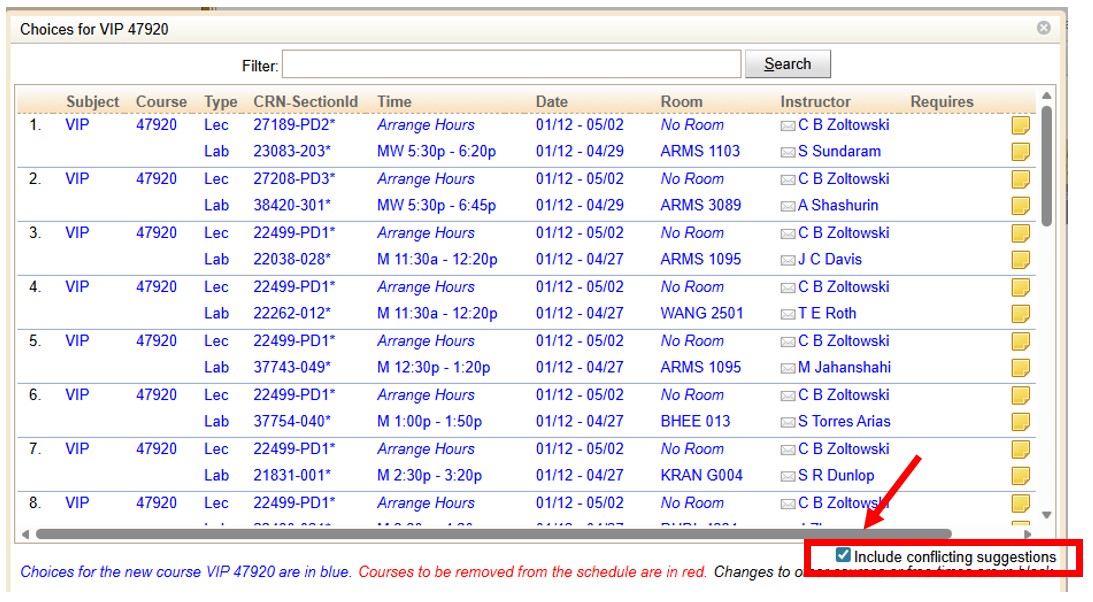
- Click the button to "add conflicting suggestions"
- Identify the section by instructor and/or schedule note
- Select the section (team) you want and submit
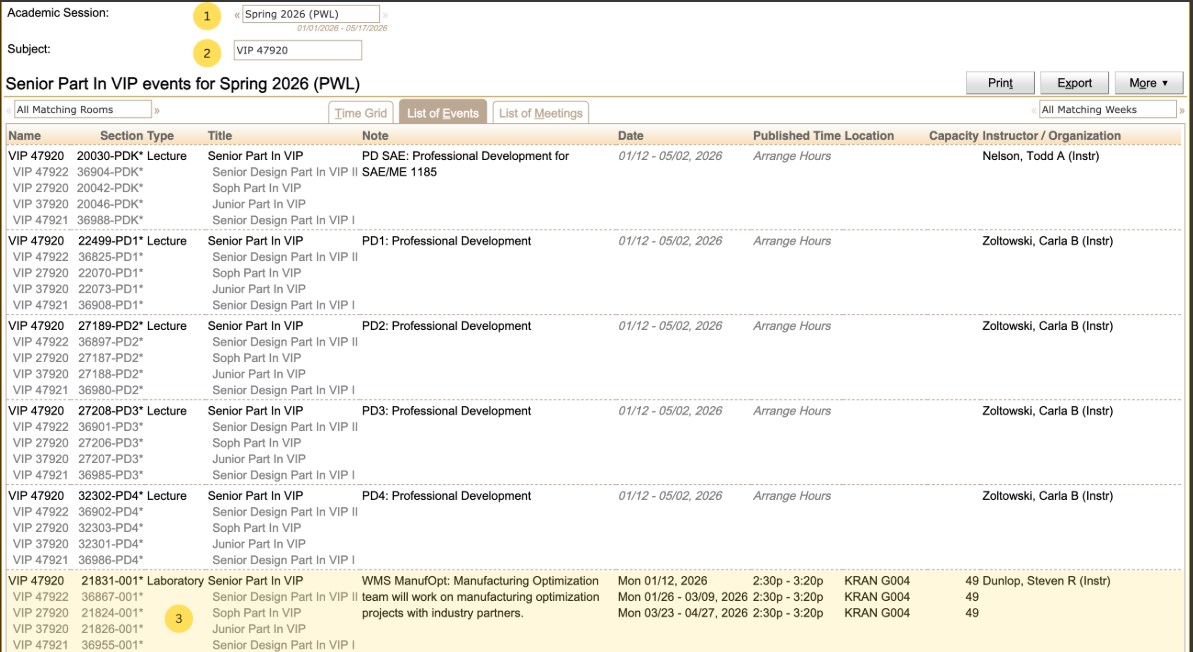
Unlike most courses where the labs are all the same no matter what time they are scheduled, each lab section represents a different team. You can choose your team by finding the appropriate CRN via the CRN list in the section below entitled "view schedule in MyPurdue."
Please be aware that spaces may be limited during open registration due to the pre-registration process. It is advised that students follow the pre-registration process, especially continuing VIP students.
Course Registration
There are different course numbers for each year. Register for the course number that corresponds to the level of courses you are taking in your major/program. If you are classified higher in myPurdue, you can request a classification override.
There are different course numbers if you are taking VIP as part of the FYE VIP Learning Community pilot (taken with ENGR 13300) or senior design.
VIP course numbers
- VIP 17911: First year participation in VIP for first semester FYE VIP LC students (offered in fall)
- VIP 17912: First year participation in VIP for second semester FYE VIP LC students (offered in spring)
- VIP 17910: First year participation in VIP (primarily Data Mine LC students, although there are limited spots available in spring)
- VIP 27920: Sophomore participation in VIP
- VIP 37920: Junior participation in VIP
- VIP 47920: Senior participation in VIP
- VIP 47921: First semester senior design participation in VIP (Note: departmental eligibility requirements must also be satisfied)
- VIP 47922: Second semester senior design participation in VIP
The section matters! Please see the scheduling assistant walkthrough instructions below.
- Each VIP team is a different section of the courses above. It is important that you register for the team that aligns with your interests. See the teams link to find more info and expectations of each of the teams.
- Each team will meet weekly. Some teams have an established meeting time as shown in myPurdue, and others will schedule the meeting based on member availability. In general, course conflicts with the team meeting time (lab section) will not be approved.
- In addition to the team/lab meetings, each registered student is expected to participate in 10 Professional Development (PD) activities during the semester. The course lecture meets weekly, and each week counts as one "PD credit." Therefore, you should plan to attend the lecture most weeks. However, there are other opportunities to earn credits, so please contact VIP if you have a conflict with the lecture.
VIP must be taken for a letter grade. It cannot be taken P/NP.
How does VIP count?
-
Electrical and computer engineering
- Up to six credits of VIP can be used as special content courses in electrical engineering (EE) or in computer engineering (CmpE).
- In addition, two semesters of VIP (VIP 47921 and VIP 47922) can be used to satisfy senior design in EE and CmpE. Please note that per current catalog, "all 20000-level courses and all but one 30000-level core course must be completed from above prior taking senior design (ECE 36200 prior to taking 47700). The remaining 30000-level core course must be taken with first semester of EPCS or VIP." Current and archived catalog terms can be found for electrical engineering and here for computer engineering.
-
Honors
- VIP counts for Honors credit (does not require an Honors contract)
- VIP Pathway (FYE requirement)
- Technical elective in most engineering disciplines
- Science, technology and society foundational learning outcome
-
Certificates:
- Entrepreneurship certificate: option and capstone course
- Defense and security undergraduate certificate option
- Data Science certificate
Schedule in MyPurdue
In myPurdue, go to Scheduling Assistant and click on “Build Schedule”.
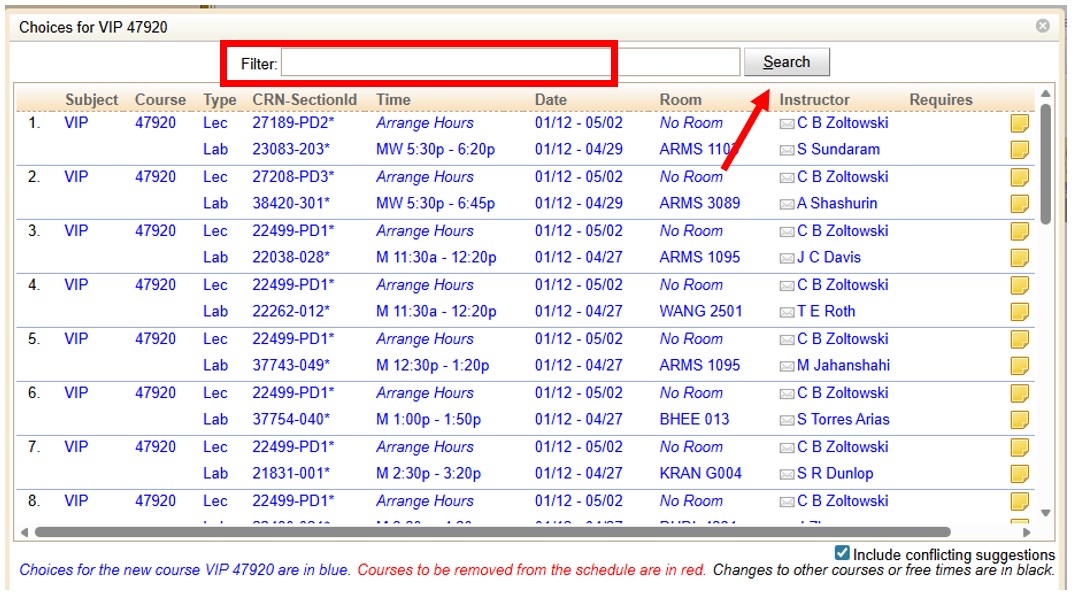
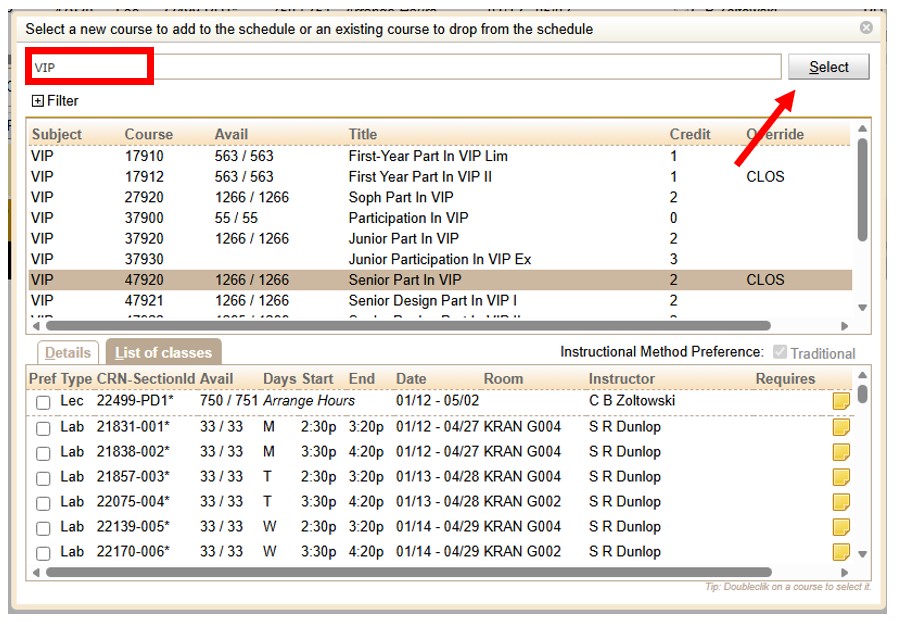
In the filter box at the top, type in the course you would like to add (VIP 47920 for this example). Then click “select” in the top right corner.
At the bottom right corner of the new page, click the “include conflicting suggestions” box.
Click “yes” when the pop-up box asks, “Do you want to explore approval for a schedule with conflicts?"
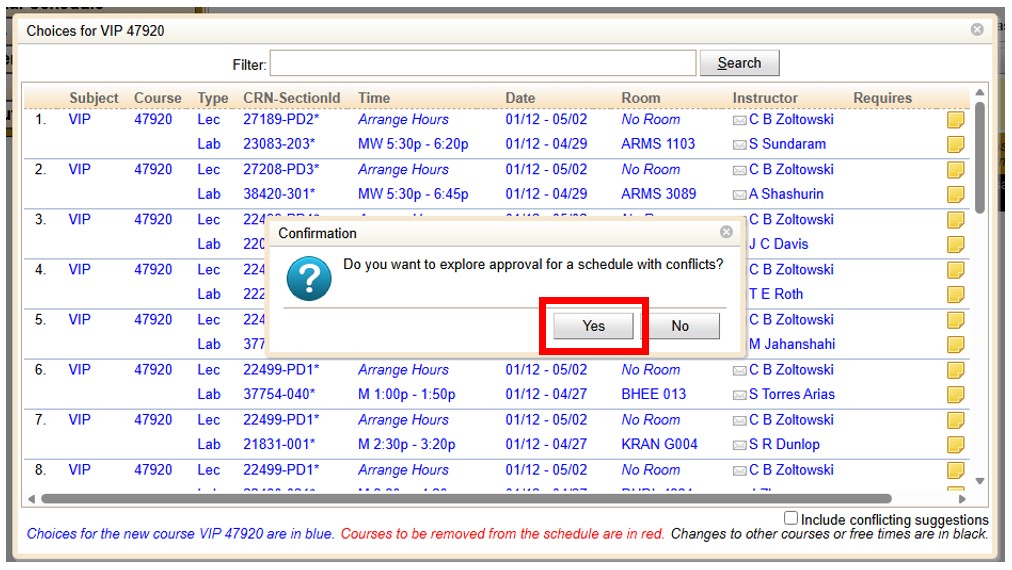
In the filter box at the top, you can enter the professor’s name or the CRN (if you know it), and click “select” in the top right corner.