Connecting Arduino with MATLAB
To begin working with MATLAB and Arduino in ENGR 13200, students must install and configure the MATLAB Support Package for Arduino Hardware. This setup allows MATLAB to:
- Read data from sensors
- Control actuators (LEDs, motors, servos, etc.)
- Communicate with Arduino in real time
- Use MATLAB scripts for analysis, visualization and automation
Follow the steps below in order, using the screenshots and instructions provided.
Step-by-Step Instructions
Step One
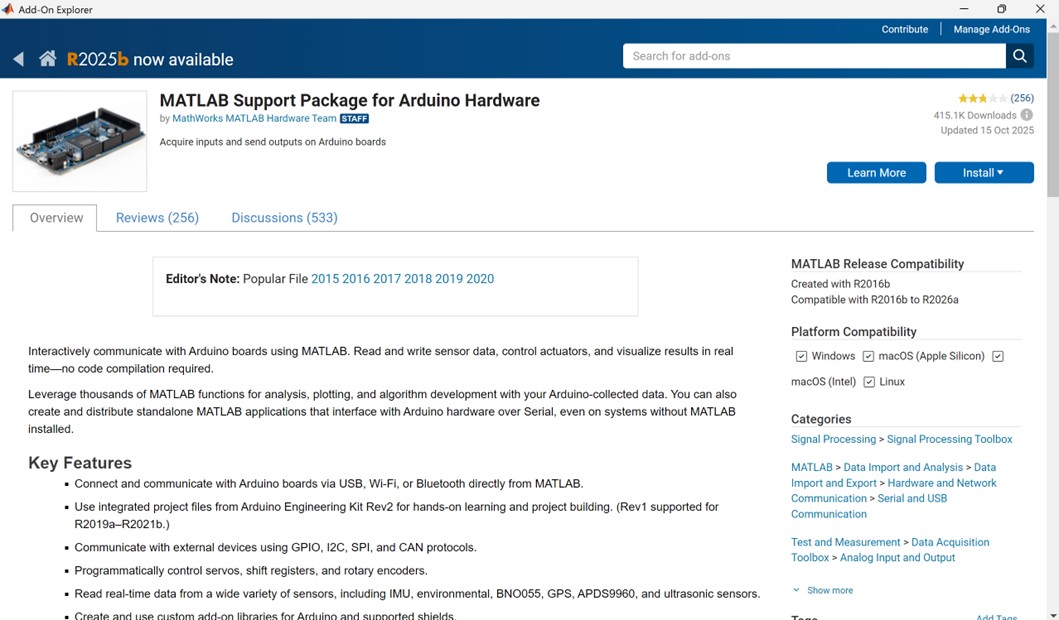
Locate the Arduino Support Package in Add-On Explorer
- Open MATLAB and go to Home > Add-Ons > Get Add-Ons
- Search for “MATLAB Support Package for Arduino Hardware”
- When the package appears, select “Install”
Figure 1

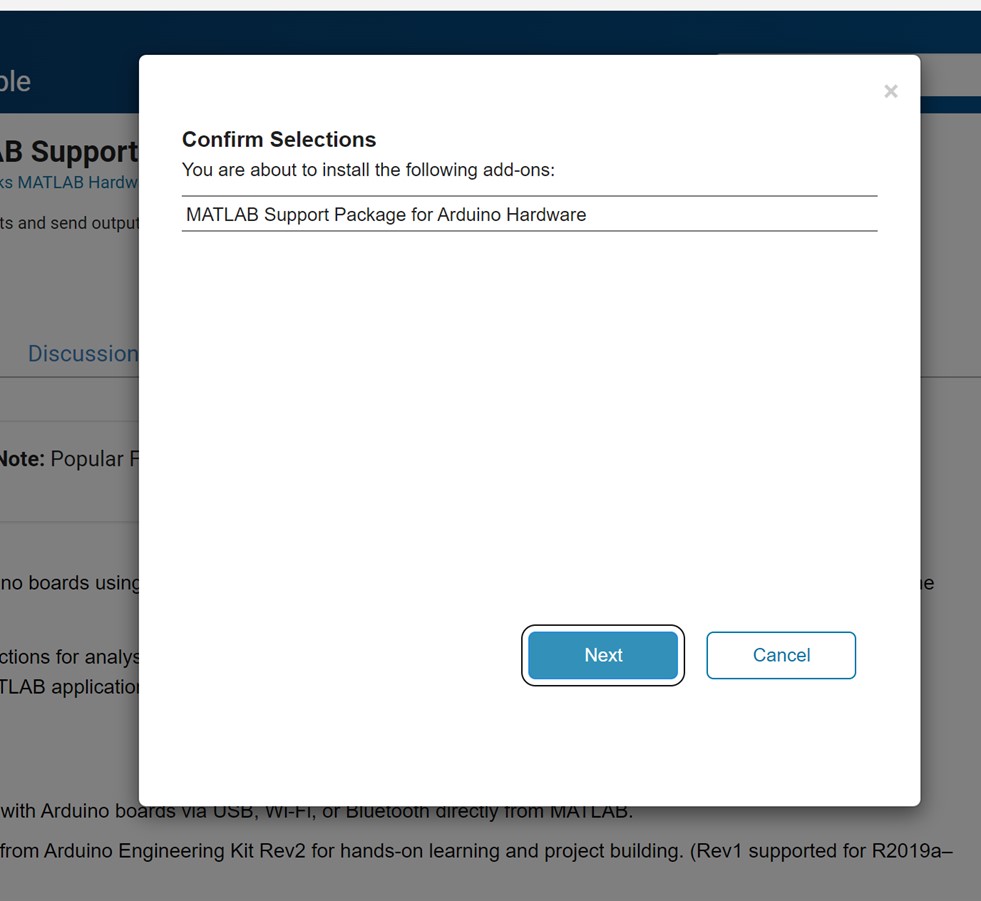
Confirm Installation
Step Two
- MATLAB will ask you to confirm the installation
- Click next to continue
Figure 2

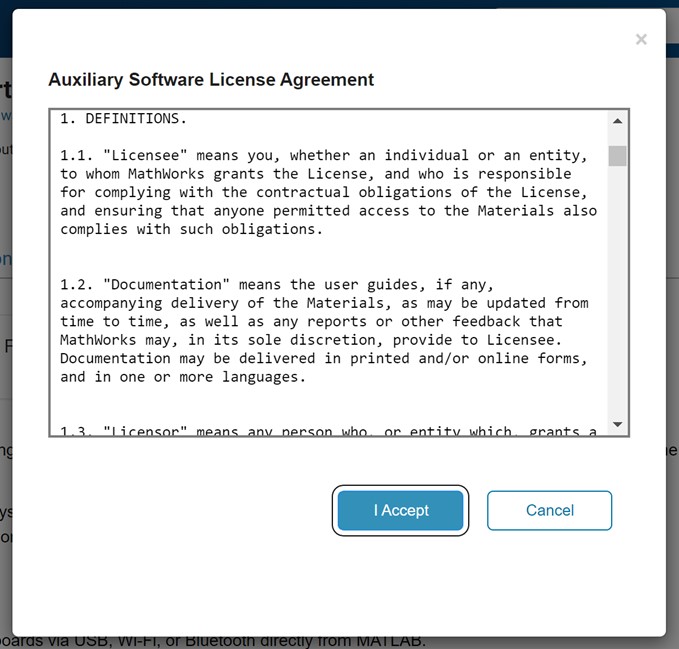
Accept the License Agreement
Step Three
-
Review the license agreement and click I Accept to proceed.
Figure 3

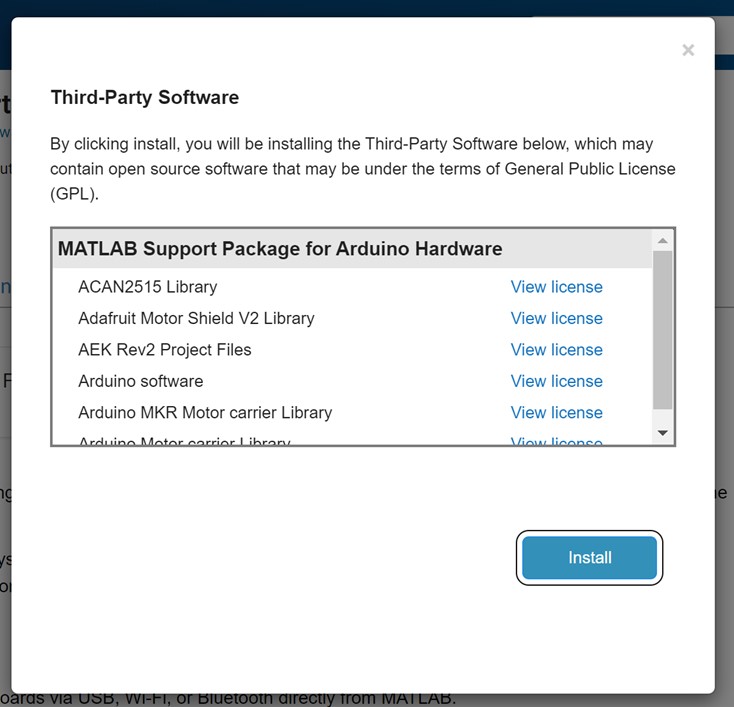
Third-Party Software Notice
Step Four
- MATLAB will display the third-party libraries included with the support package.
- Click install to continue.
Figure 4

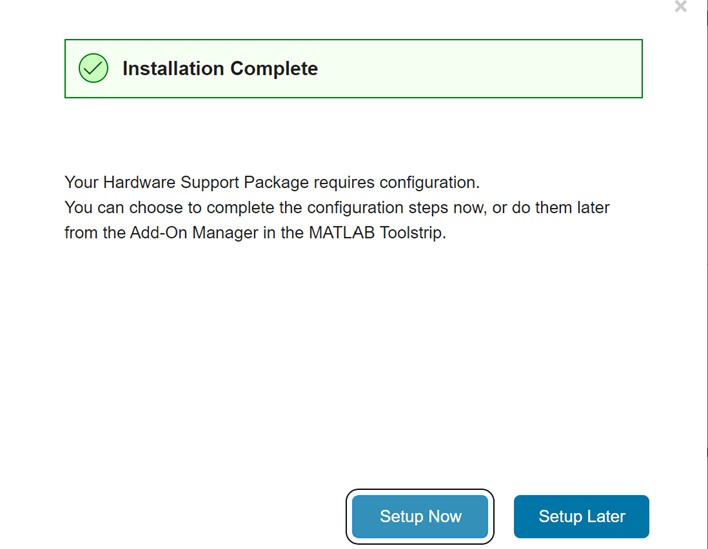
Installation Complete
Step Five
- When the installation finishes, select setup now to begin configuring Arduino hardware.
Figure 5

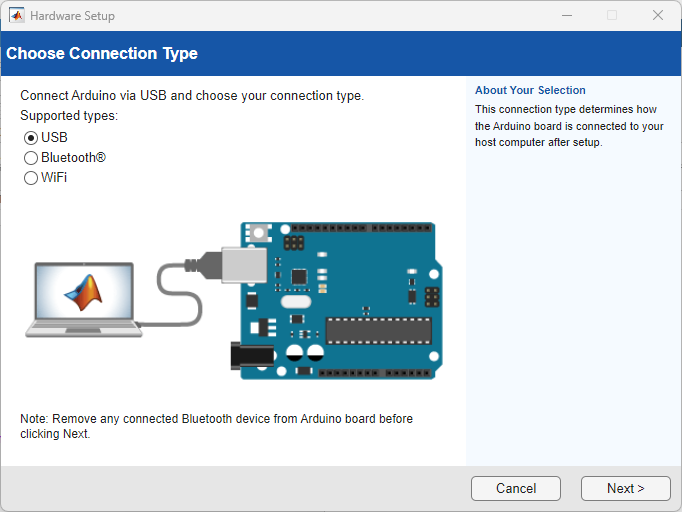
Choose Connection Type
Step Six
-
Check which Arduino board you are using and select the corresponding connection method:
- Arduino Uno R3 → select USB
- Arduino Uno R4 WiFi → select WiFi
- After selecting the correct option, click next.
Figure 6

Instruction
Step Seven
-
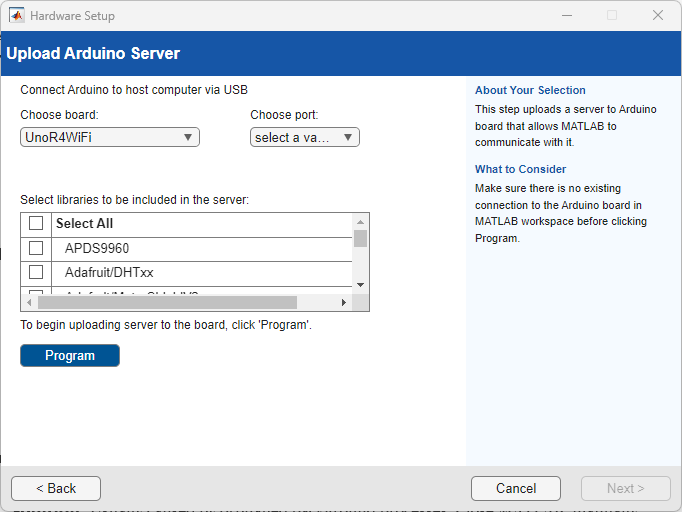
MATLAB will now configure your board based on the connection type selected:
- If USB (Arduino Uno R3) was selected, choose Arduino Uno, select the correct COM port and click Program to upload the MATLAB server.
- If WiFi (Arduino Uno R4 WiFi) was selected, enter the Wi-Fi network name and password, then click Program to configure the board.
- Once MATLAB shows a Success! message, click Next.
Figure 7

Test Arduino Connection
Step Eight
-
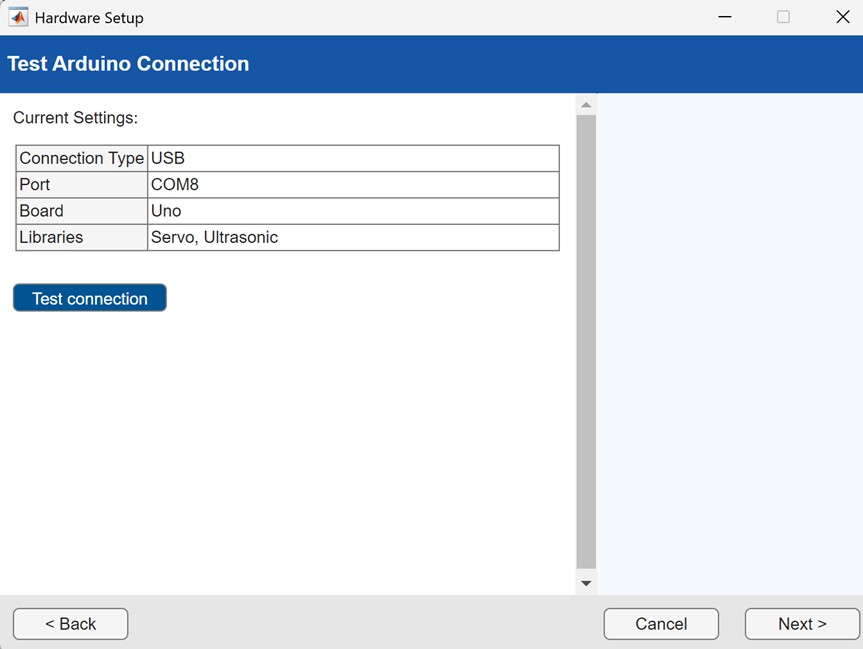
MATLAB will show the current settings.
- Click Test connection to verify communication with the board.
- When the test succeeds, click next.
Figure 8: Test the connection to the Arduino board by selecting “test connection,” then click “next” once the test is successful.

Hardware Setup Complete
Step Nine
-
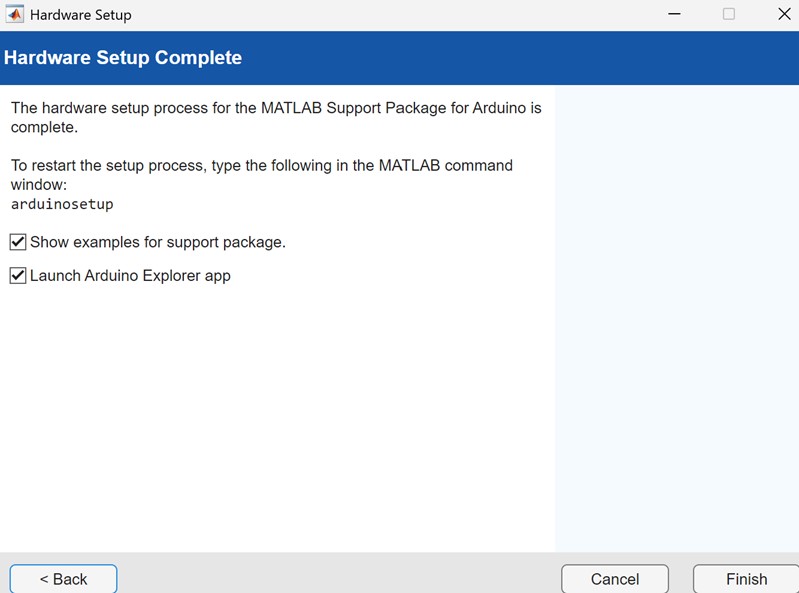
Setup is complete.
- Click Finish to close the hardware setup tool.
- (Leave “Show examples” and “Launch Arduino Explorer app” checked.)
Figure 9