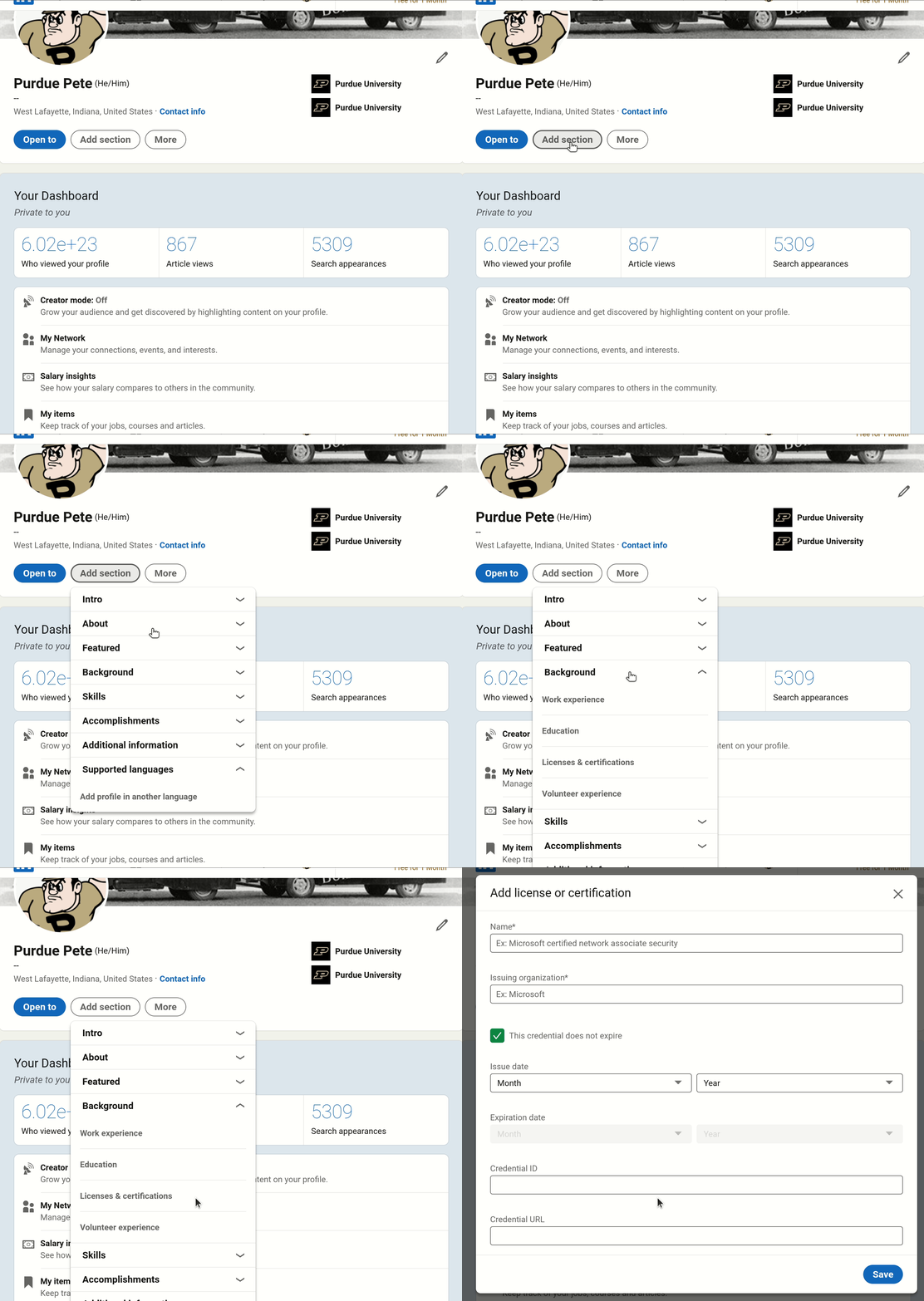
Adding a new certificate to your LinkedIn profile
-
Log in to LinkedIn and view your profile.
Accessing your LinkedIn profile. -
Near the top of the page, click the Add section button. Then select Background followed by Licenses & certifications from the drop-down menu. Alternatively, if you already have some certifications, you can click the plus icon in the Licenses & certifications section of your profile.
Creating a new certification. -
Fill in the appropriate fields:
- Enter the certificate’s Name as shown on your certificate (e.g. “EBEC: Entry-Level Programming in Python” or “Geometric Dimensioning and Tolerancing Milestone Workshop”)
- Enter “Purdue University” as the Issuing organization.
- Check the box for This credential does not expire.
- Select the Issue date as listed on your certificate.
- There is no ID for this certificate, so leave the Credential ID field blank.
- Copy and paste your certificate’s URL (from the email you received upon completion) into the Credential URL field.
Completing the certificate form.