MADMIN Manual
MSTUDENT Manual
MSERVER Manual
MADMIN Manual
SYNOPSIS
madmin [server_name/port]
OPTIONS
server_name/port
- can be specified, this will be the default server when MADMIN starts.
If not specified,
the user is prompted with a menu with a list of servers to choose from
(the list is read
from the file Servers.dat).
OPERATION
MADMIN is a part of the MTEACH system which serves for the session administrators
and moderators (teachers) as a way to connect to the server, retrieve or
modify its data and start or join the multimedia session.
When started, after selecting the server, the user can click on the
"No connection.." button, after which he/she is prompted for the username
and password. The user is uniquely defined by his username and password.
Depending on the information that server sends afterwards, three cases
exist:
-
The user is granted administrator access. In this mode, the user
can change or add every possible option in the session and user database.
-
The user is granted moderator access. In this mode, the user can check
which sessions he/she moderates, change the session information field and
check which users are allowed to participate in his/her session. He/she
can also see the settings for the session (which application, what are
the command line arguments) but cannot change them.
-
The user is not allowed to access the server.
The main window looks as follows:
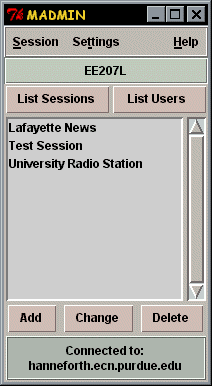 MADMIN Main Window
On the top, the menu commands are as follows:
-
Session menu:
-
Start Session - starts the specified applications for the selected session,
with the moderator command line arguments. Moderator command line arguments
may or may not be the same as the user command line arguments.
-
Join Session - starts applications for the selected session with the user
command line arguments.
-
Disconnect - disconnects from the server. Once established, the connection
with the server is maintained until disconnected.
-
Quit - quits program and terminates the server connection.
-
Settings:
-
Change Server - pops up a menu where one can select the server. In this
menu, it is possible to add new servers (with ports to connect to) by pressing
"New".
-
Change Password - prompts the user for the new password.
-
Help: pretty much straightforward.
Under the main menu, the title bar displays the currently selected session.
The session or user can be selected by clicking on its name in the main
list window. If double clicked, the session information pops up (if the
users are displayed, it shows the sessions that a user is entitled to or
moderates). Right click to remove the information window.
There are two buttons underneath the title bar:
-
List Sessions - this button behaves differently depending on the user privileges.
If administrator privileges are given, it displays two selections when
clicked:
-
Get Global Sessions - downloads the list of sessions which can be accessed
by any user (and guests, which login with a "guest" username and no password).
-
Get Restricted Sessions - downloads the list of sessions available only
to selected users. Again, this button behaves differently: in administrative
mode, it will download all restricted sessions existing on the server,
whereas in the moderator mode, it will download only the sessions that
the current user is moderating.
-
List Users - if in admin mode, shows two selections:
-
Get User List - downloads the list of all users (students) from the server.
-
Get Moderator List - downloads the list of all moderators (teachers) from
the server.
If in moderator mode, clicking on "List Sessions" the list of moderated
sessions appears and by clicking on "List Users" the list of users attending
all moderated sessions (by that moderator) appear.
Underneath the main list window, there are 3 buttons:
-
Add - disabled in moderator mode. In administrative
mode, three selections are possible:
-
Add Session - displays the blank session information window and a new ses-sion
can be created.
-
Add User - displays the user information window and a new user can be added.
The user information window consists of username, password and sessions
that can be attended or moderated (separated by comma). Note that if the
moderator, for example, wishes to attend certain sessions other than the
moderating ones, he/she would have to be added as normal users.
-
Add Moderator - displays the user information window and a new moderator
can be added.
-
Change - displays the session information window (see
Figure), with the selected session information (or user information window
with the selected user information).
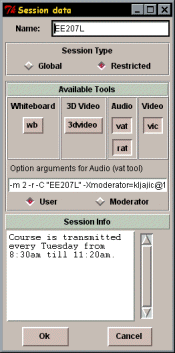 MADMIN Session Information Window
The session Information window consists of the following:
MADMIN Session Information Window
The session Information window consists of the following:
-
Name - session name field
-
Session Type - can be Global, which can then be accessed by all (username
"guest") or Restricted, which can be accessed only by users who have this
session name in their session list.
-
Available Tools - this menu is auto configurable. Every time when connection
with the server is established, the server sends a list of all the media
types and appropriate applications (executables) that it supports. This
menu configures accordingly to show all possible media tools (applications).
If the button is depressed, this means that the tool is in use for the
current session. There can be multiple tools for one media type. When the
session is being started or joined, MAdmin attempts to start those tools
one by one until it succeeds. This is good if the administrator is not
sure which tool should be used and which tool is actually used by the end
user. He/she can then input several tools in the server list.
-
Option arguments entry field - when clicked on a particular media tool
(application), this field displays its command line arguments with which
it is going to be invoked. The option arguments are used either when the
moderator selects "Start Session" or when the user joins the session, depending
on the "User" or the "Moderator" selection.
-
Session Info - information about the session.
When "Ok" is selected, the information is sent to the server which either
adds or updates the session.
In moderator mode, only the "Session Info" field can be changed.
-
Delete - deletes the session or the user or the moderator, depending on
the selec-tion.
The field at the bottom of the main window displays either "No connection",
or "Connected to _server_name_", depending on the status of the connection.
If clicked upon, it either tries to establish the connection with the server
or disconnects (it is a shortcut for the "Disconnect" menu button).
Note: Once MADMIN is started, it looks for the file named "Servers.dat".
If found, it tries to load the server information from that file. The file
format is:
server's_internet_address port
server's_internet_address port
…
This list of servers is going to be displayed when MADMIN is started.
If "Servers.dat" is not found, the user is prompted to input the server
name and the port.
MSTUDENT Manual
SYNOPSIS
mstudent [server_name/port]
OPTIONS
server_name/port
- can be specified, it is the default server when mstudent starts. If not
specified, user is
prompted with a menu with a list of servers to choose from (the list is
read from the
file Servers.dat).
OPERATION
MSTUDENT is a part of the MTEACH system which serves the students (or
end users) so that they can connect to the server, retrieve basic session
information or change their passwords, and join the multimedia session.
When started, after selecting the server, the user is prompted for the
username and password. The user is uniquely defined by its username and
password. The user can either be granted the access in which case the session
data available to him/her is automatically retrieved and the connection
is terminated or the user is not allowed to access the server.
The main window looks as follows:
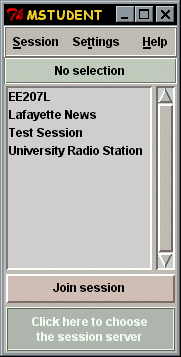 MSTUDENT Main Window
Menus are as follows:
MSTUDENT Main Window
Menus are as follows:
-
Session:
-
Join Session - the appropriate multimedia applications are invoked, thus
joining the session. Shortcut is the big button on the main window.
-
Quit - quits the application.
-
Settings:
-
Change Server - pops up a menu where one can select the server to connect
to. In that menu, it is possible to add new servers (with ports to connect
to) by pressing "New".
-
Change Password - prompts the user for the new password.
-
Help: pretty much straightforward.
Clicking on the session in the main list window selects it, double clicking
invokes the information window displaying session information (right click
to remove it). Note that only the global sessions (accessed with the "guest"
username) or the sessions that the user is registered to are retrieved
from the server and displayed.
Note: Once MSTUDENT is started, it looks for the file named "Servers.dat".
If found, it tries to load the server information from that file. The file
format is:
server's_internet_address port
server's_internet_address port
…
This list of servers is going to be displayed when MSTUDENT is started.
If "Servers.dat" is not found, the user is prompted to input the server
name and the port.
MSERVER Manual
SYNOPSIS
mserver [port #][log 0|x]
OPTIONS
[port #][log 0|x]
- port number specifies the port to which the server is listening (defaults
to 23232).
log opens the file Log.dat in which the connections to the server are logged
(time, date
and where from - connections established and terminated), if the argument
after log is
different than 0. log defaults to 0.
OPERATION
Mserver is the part of the MTEACH system. It maintains the database
of users, moderators, administrator and multimedia sessions. It also provides
access to those databases to the authorized users. It does not have a graphical
user interface so it can be started remotely, with minimum of resources
necessary for its operation.
Once started, it replies to requests from the MADMIN and MSTUDENT applications
until it is terminated (Ctrl-C). It maintains 6 files (databases), in plain
ASCII:
-
Adm.dat - this is one of the two files that should
be made before the first time that MSERVER is started. It should contain
only one word - the administrative password. Administrator username is
"administrator" by default.
-
Moderats.dat - it contains information about all the moderators. It is
of the same format as the following file.
-
Students.dat - contains information about all the students (end users)
on the server. Here is the file format:
Name
Password
List of sessions, separated by comma (and possibly spaces)
**
Name
…
**
It should be in ASCII.
-
Globsess.dat - contains information about the global sessions. Has the
same format as the following file.
-
Restrict.dat - contains information about the restricted sessions. The
format:
Session name
List of complete command lines for the multimedia applications that
can be invoked for this session. If different command line arguments are
used for users and moderators, the user line should go first and in the
next line, the moderator command line preceded by m:
Example:
vat -m 2 -r 224.22.22.22/57593
m: vat -m 1 -r 224.22.22.22/57593
rat -m 2 224.22.22.22/57593
m: rat -m 1 224.22.22.22/57593
vic -r 2 224.22.22.22/23456
m: vic -r 1 224.22.22.22/23456
One asterisk sign (*).
Session information, can be multiple lines.
Two asterisk signs (**).
Possible new session…
-
Types.dat - this is the other file that should be made
manually and cannot be changed remotely. It contains the information about
all possible types of media and supporting applications. Example:
.Audio
vat
rat
.Video
vic
.Whiteboard
wb
.3D Video
3dvideo
First, media name goes preceded by a period and in the next line(s), names
of the applications that support it (executable names).
SECURITY
The directory where MSERVER resides should be protected by resetting
all group and other permissions.
Click here to go back to the main page