ECE 462 Fall 2010
Individual Programming Assignment II:
(C++ and Qt) Graphical User Interface
Due: October 8
Summary
In this assignment, you will create a program with a graphical user interface (GUI). The interface includes a menubar, a widget, a label, and several radio buttons. This program must be written using C++ and Qt. You can download and install the free version of Qt. Qt is available for Linux, Mac, as well as Windows. Java is not accepted for this assignment.
Background
Most programs with GUI are written using object-oriented languages. A GUI may contain many objects, such as buttons, text field, and labels. The GUI window is a "container" of a base class. These objects (button, label...) instantiate classes that are derived from the base class. These classes override a crucial method that make these objects appear different. This method is called repaint (correspond to paintComponent in Java). You can create a new derived class (for example, use QWidget as the base) and override the repaint function. The repaint function is virtual and your function is called (due to polymorphism).
Another important concept in programming GUI is handling events. A program may have many call-back functions, or event handlers. In Qt, an event is called a signal and a handler is called a slot. These functions are called when some events occur; for example, a user moves the mouse cursor or clicks a button. These functions are not called directly anywhere in the program. Instead, these functions register the events to be handled.
User Interface
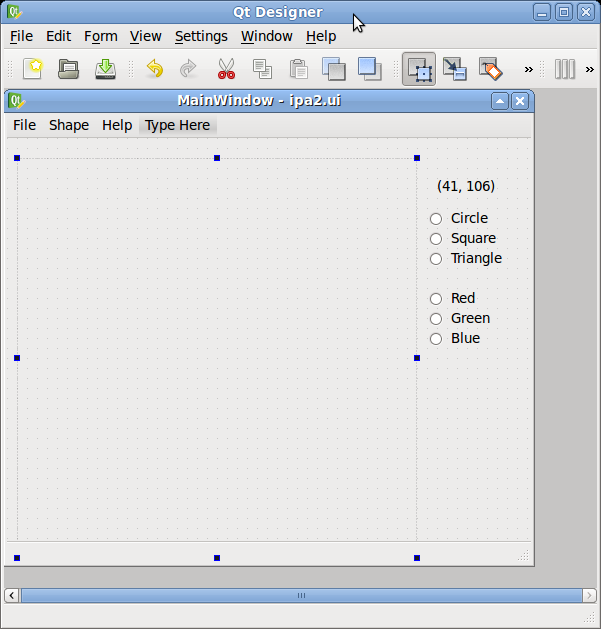
This figure shows the user interface you need to develop for the assignment. This example is created using Qt Designer (type "designer" in an ECE Linux computer). You are free to create the user interface without using Qt designer. You can find many examples at Qt's documentation page.
Requirements
The program has a menubar, two groups of radio buttons, a widget, and a label.
Menubar
The menubar has three menus
- File. There are four options: New, Open, Save, and Exit.
- New. If it is selected, the currently edited file is closed and a new is created. If the currently edited file has been changed but not saved, a warning message appears.

If the user selects "Close without Saving", the current file is closed directly. If the user selects "Cancel", the "New" command is ignored. If the user selects "Save", a file dialog appears. Please notice that the title is "Save".
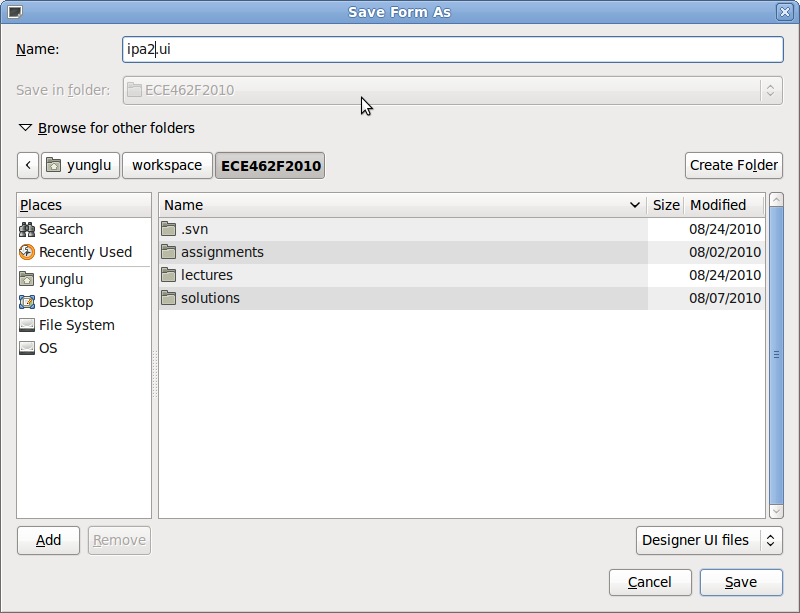
The user may save the current file or selects "Cancel" without saving. Either way, the current file is closed and a new file is created.
- Open. A file dialog appears. If the currently edited file has been changed but not saved, a warning message appears.
If the user selects "Close without Saving", the current file is closed directly. If the user selects "Cancel", the "Open" command is ignored. If the user selects "Save", a file dialog appears. The user may save the current file or selects "Cancel" without saving. Either way, the current file is closed and a new file dialog appears with title "Open" (not "Save").
If the user opens a file, the file is read and its content (the shapes and their colors, details are explained below) is displayed. If the user selects Cancel, a new file is created. (The previously edited file has already been closed.)
- Save. When Save is selected, a file dialog appears. The user may save or cancel. Either way, the program returns to the currently edited file without closing it.
- Exit. If the current edit has been changed but not saved, a warning message appears. If the user selects "Close without Saving", the current file is closed directly and the program terminates. If the user selects "Cancel", the "Exit" command is ignored. If the user selects "Save", a file dialog appears.
- Shape. There are three options: Circle, Square, and Triangle.
- Help. There is only one menu under Help. It is "About". When About is selected, a message window appears and the message is
ECE 462 Fall 2010
Your Name
Your Purdue Account
Radio Buttons
There are two groups of radio buttons. The first controls the shape and the second controls the color. Within each group, only one button can be selected. Hence, if a user selects Triangle, the user cannot select Square. However, two buttons in two different groups can be selected simultaneously. For example, a user can select Circle and Red. In this program, one and exactly one option in each group must be selected. The default selections (immediately after the program starts) are Circle and Red.
The shape group has the same effect as the Shape menu. Hence, a user can change shapes by using either the menu or the radio buttons.
Widget
This is the place where the shapes are drawn. The widget's size is exactly 400 x 400. Your program needs to set the minimum size to be 400 x 400 and the maximum size to be 400 x 400.
When the mouse cursor is moved into the widget, the corresponding shape and color is drawn. For simplicity, this program considers shapes of fixed sizes only. The circle's diameter is always 60. The square's side length is 60. The length of a trangle's side is also 60. The shape is filled (not just the outlines) by the selected color.
The cursor is at the center of the corresponding shape. Therefore, if a user moves the cursor, the shape also moves. When the cursor moves out of the widget, the shape is no longer shown. This allows the user to change shape or color because the menubar and the buttons are outside the widget. If the cursor is within the widget but close to the widget's boundary, only parts of the shape appears inside the widget.
When the user clicks the left mouse button, the shape is placed at the current location and can no longer move. In other words, the shape is now fixed. A new shape is generated based on current selection. The new shape is above all existing shapes. If the new shape overlaps with a fixed shape, the overlapping part of the fixed shape is hidden below the new shape.
Label
The label shows the cursor's x and y coordinates within the widget. If the cursor is outside the widget, the label shows the last coordinate in the widget. The values should be between 0 and 399.
Hints
A good way to start this assignment is to study Qt's examples and tutorials. There are many examples on-line. Pay special attention to event handlers since this is likely to be new to many of you. For example, study what is mouseMoveEvent and how it can be used. Also, notice the QWidget has a Boolean attribute called mouseTracking and it can be set by calling the setMouseTracking function.
A good way to start this assignment is finding an exsiting Qt example as the basis of your program and making appropriate changes.
Make sure you use Qt version 4 or later. The latest version is 4.6. To check, type "qmake -version" in a termal. Qt 3 is too old and not compatible with Qt 4.
If a class contains slots, remember to put Q_OBJECT at the top of the class. Q_OBJECT is a macro to enable signals and slots. Missing Q_OBJECT is a common mistake.
You can download Qt-Eclipse integration or Qt-Netbeans integration. You can, of course, use neither.
Grading
The full score of this assignment is 5 points.
- User interface
- Menubar
- 0.2 point. a menu bar, three menus: File, Shape, and Help.
- 0.2 point. four options under File: New, Open, Save, and Exit.
- 0.2 point. three options under Shape: Circle, Square, and Triangle.
- 0.2 point. one option under Help: About.
- Widget: 0.2 point. size 400 x 400
- Radio Buttons
- 0.2 point. Shape group: Circle, Square, and Triangle. Exactly one shape can be selected.
- 0.2 point. Color group: Red, Green, Blue. Exactly one color can be selected.
- Label: 0.2 point. A label shows the mouse cursor's coordinate.
- Handle Menu Selections
- File menu
- New. 0.2 point. Please read the requirements above.
- Open and Save. 0.2 point.
- Exit. 0.2 point.
- Confirm closing the current file. 0.2 point. If the current file has been changed and not saved, a warning message appears.
- Shape menu. 0.2 point. The shape can be changed by selecting different menu items. This is graded if the correct shape can appear in the widget. If you cannot make the widget work, add a label showing which shape is selected.
- Help menu. 0.2 point.
- Handle Radio Buttons. 0.2 point. The correct shape and color are selected when the buttons are selected. This is graded if the correct shape can appear in the widget. If you cannot make the widget work, add a label showing which shape is selected.
- Draw shape. 0.8 point. The correct shape and color are drawn in the widget.
- Follow mouse cursor. 0.6 point. The shape follows the mouse's cursor. The cursor is at the center of the shape.
- Left mouse button. 0.4 point. When the button is clicked, the shape no longer moves.
- Depth of a shape. 0.2 point. A new shape is drawn above all fixed shaped.
You can add attitional labels for providing debugging information. They will not be graded, nor will they make you lose points.
Submission
Submit your program to the grading server. Since this program has graphical user interface, automatic grading is not available (there are tools for testing GUIs but these tools are not mature enough yet). You can submit as many times as you want and the last submission is used for grading. You are strongly encouraged to submit as you make progress so that you may receive partial credits if something happens on the due day (example, your computer crashes).
Submit a zip file with only .h and .cpp files. Make sure your program can be compiled by using the following sequence of commands:
> qmake -project
> qmake
> make
|

